Time-lapse City lights
Introduction
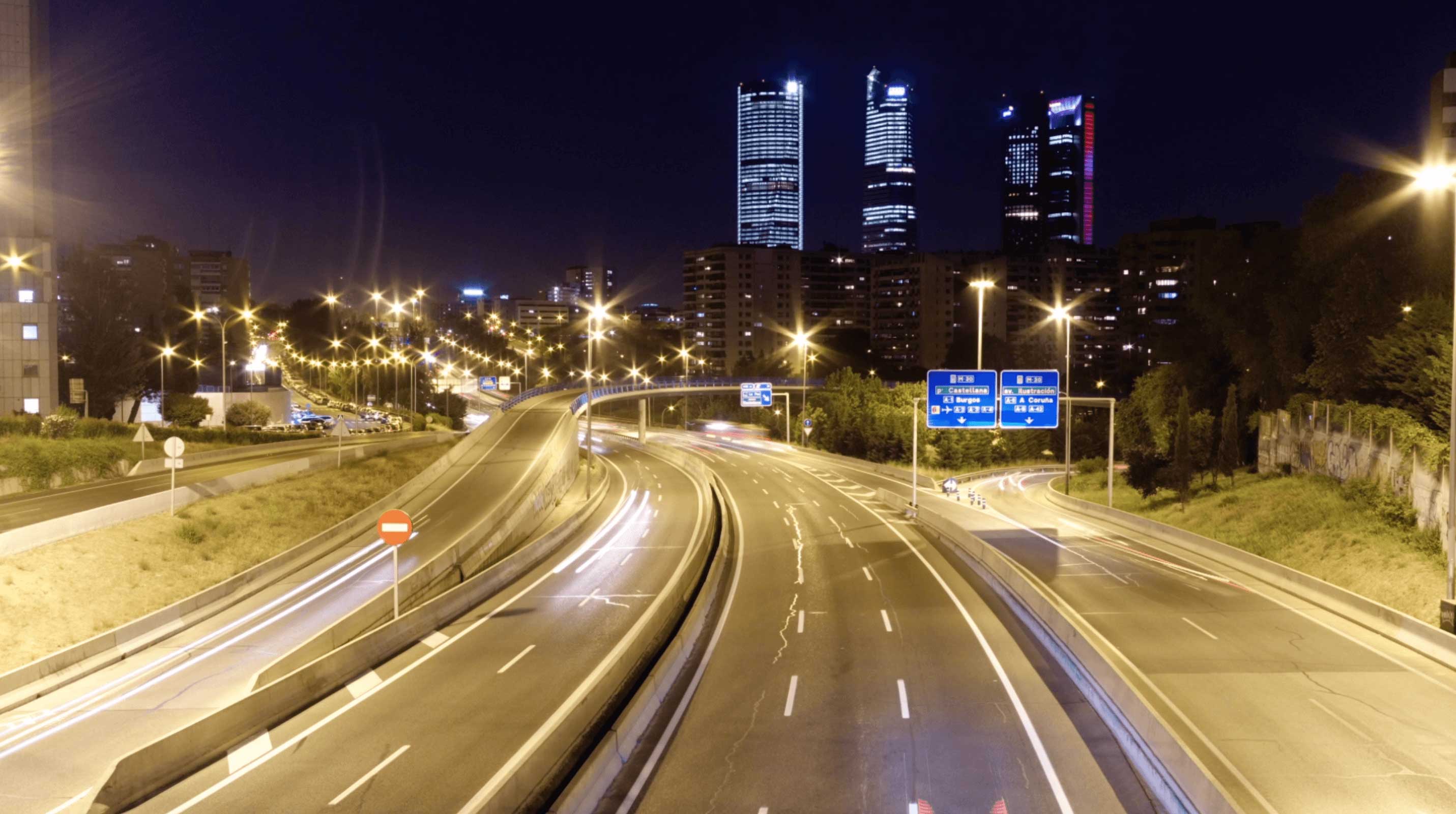
Digital cameras, along with the time-lapse technique, have allowed us in recent years to see cities in many different ways, particularly the speed and dynamism of their infinite movement.
Further, technology now lets us photograph with very little light and still obtain clear and noise-free images. In this tutorial, we will discuss the main rules to follow to obtain top-notch time lapses of cities.

Before shooting
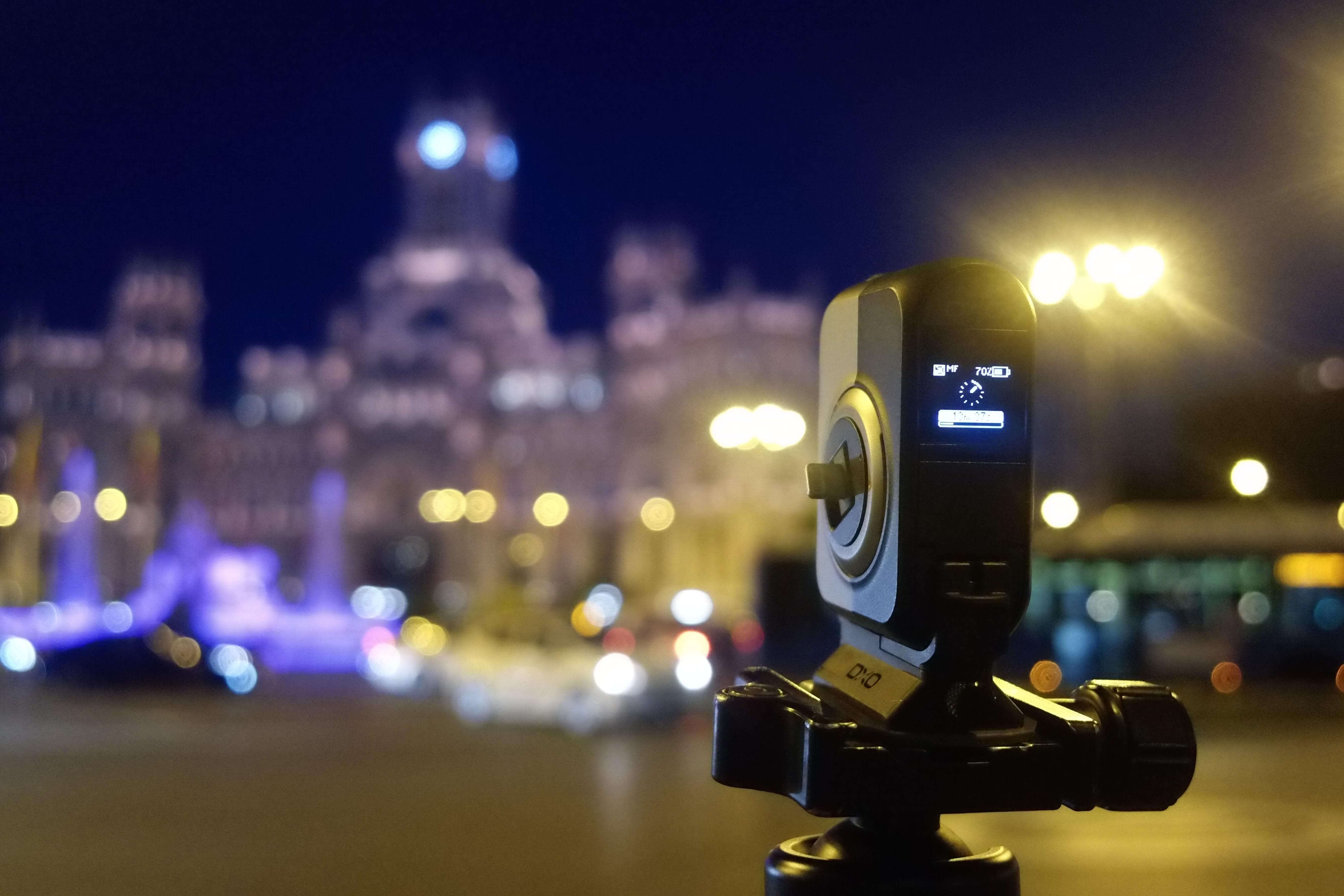
As in any other scene, the first thing you should do is choose the right spot to take your shot. It is important that you have a good perspective from which to see the movement of cars and people.
The scene is usually more dramatic when our position is high off the ground, as moving away from our subjects makes our composition more interesting by accentuating the amplitude and generating slower movements, since cars would otherwise pass by too fast. In addition, we avoid having vehicle lights hit our camera directly and thus generate unwanted flicker.

Exposure setup
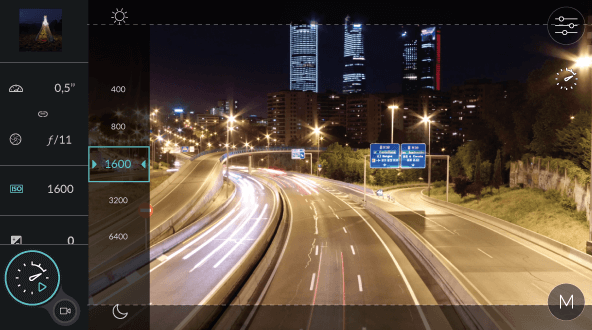
Correctly choosing the shutter speed and the aperture is very important in city time-lapses because these factors not only serve to control the light that arrives on the sensor, but they are responsible for the amount of motion blur and depth of field, both essential characteristics in these scenes.
The shutter speed is perhaps the key element in city time-lapses. If we choose a very quick one, we will freeze the movement and the time-lapse will not be fluid.
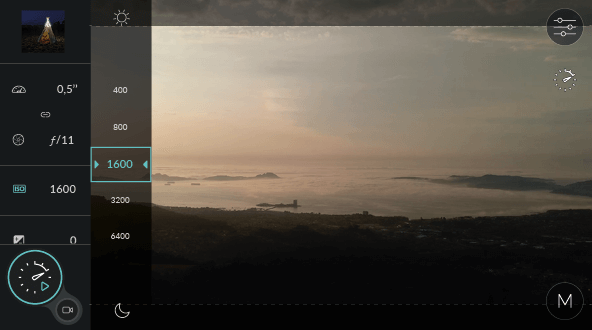
So I recommend a shutter speed of at least 0.5s, with 1 to 3s also being valid values, depending on the movement in the scene.
If we are photographing at night, we will not have a problem attaining these speeds—just closing the aperture a little will be enough to achieve 1s, but during the day, the situation becomes more complicated.
Even closing the diaphragm to ƒ/11 will not be enough to reach the right shutter speeds, and it will generate diffraction “stars” around bright lights. For this reason, we absolutely must use neutral density (“ND”) filters. The most useful filters are 0.9 and 1.2, which are equivalent to between 3 and 5 stops.

Interval setup
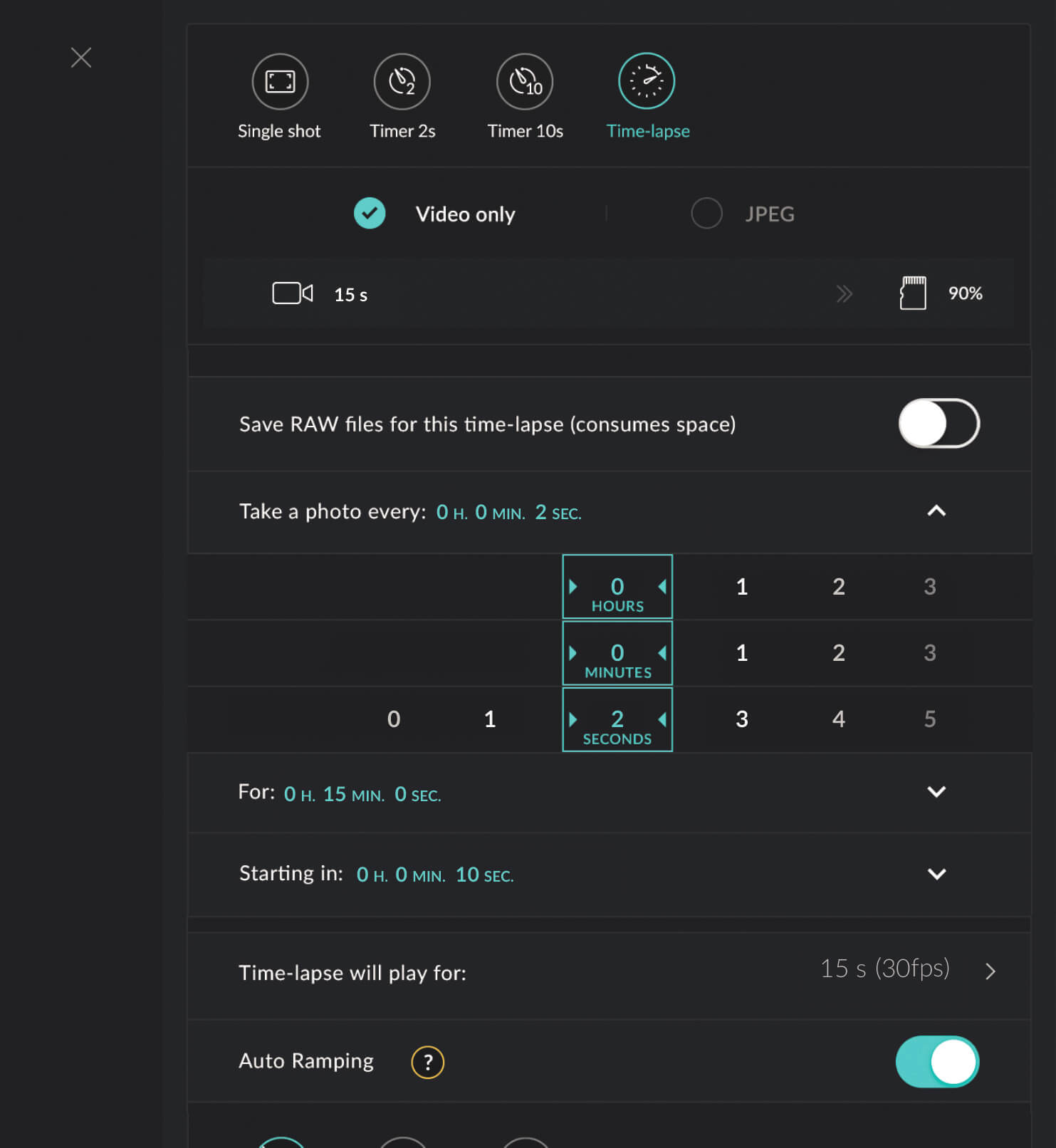
If you are not new to the time-lapse technique, you know this rule, but if you are new, burn it in your memory: the higher the speed of the scene, the shorter the interval you have to select.
This is why, when we capture scenes in cities, we choose the shortest interval possible, because cities are where we find the fastest movement of all — cars and people. The ideal is to choose an interval of 1s, so that the final movement of the city is as fluid and smooth as possible.
But unfortunately, most cameras today are unable to capture high-resolution images at that rate on a continuous burst, because the buffers fill up before the camera is able to write to the card. This means we must choose the shortest interval that allows us to maintain a continuous cadence.
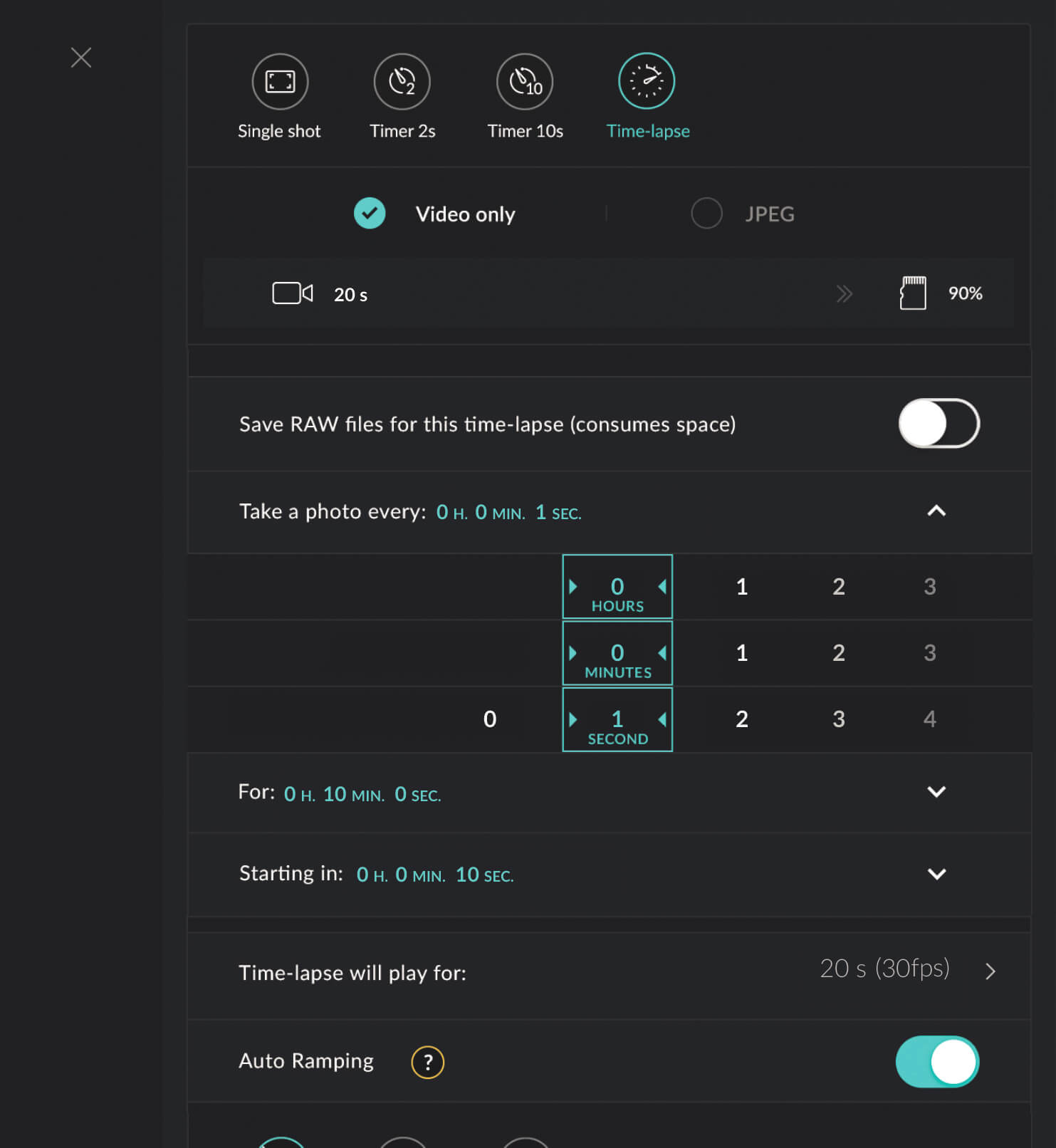
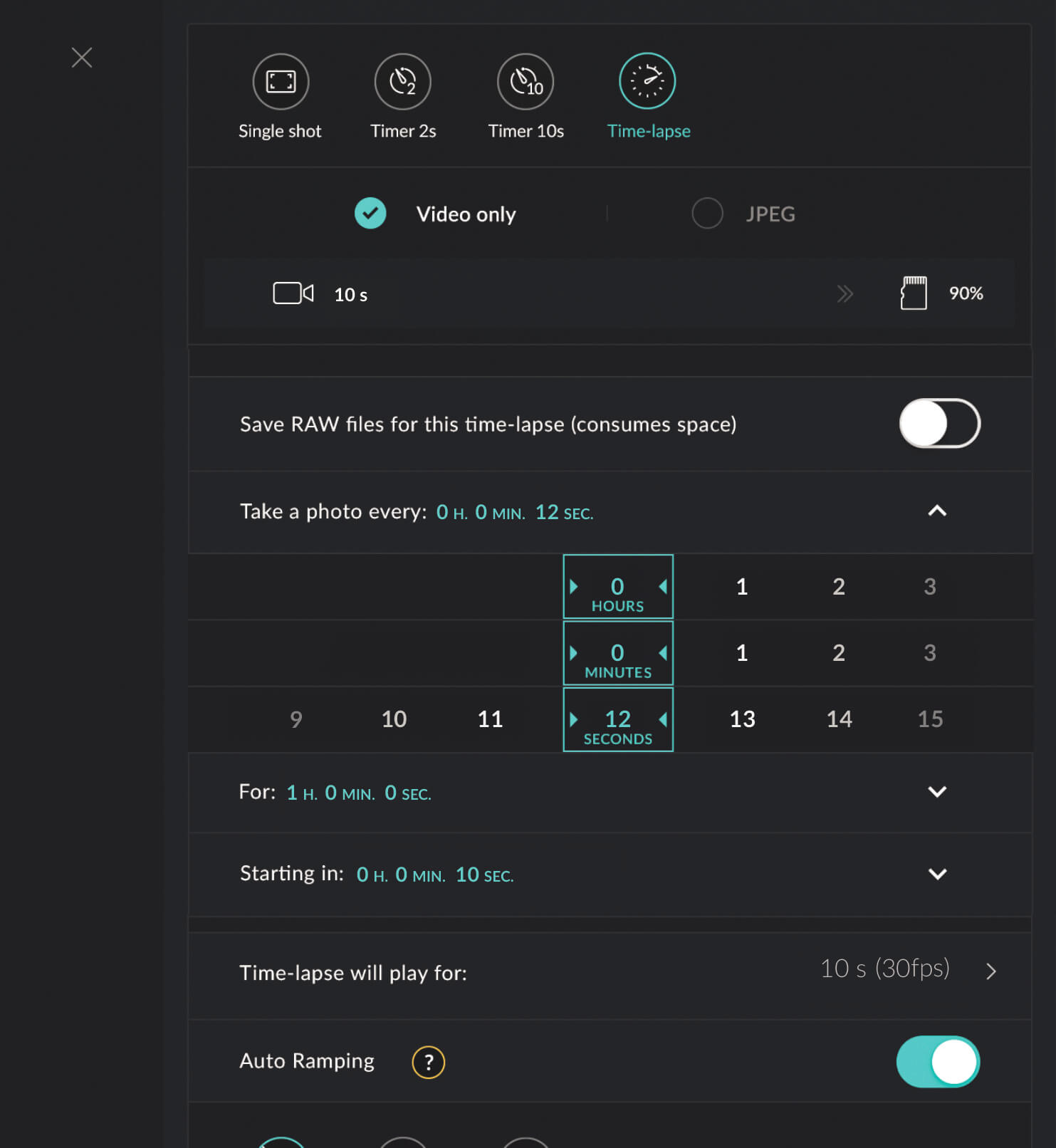
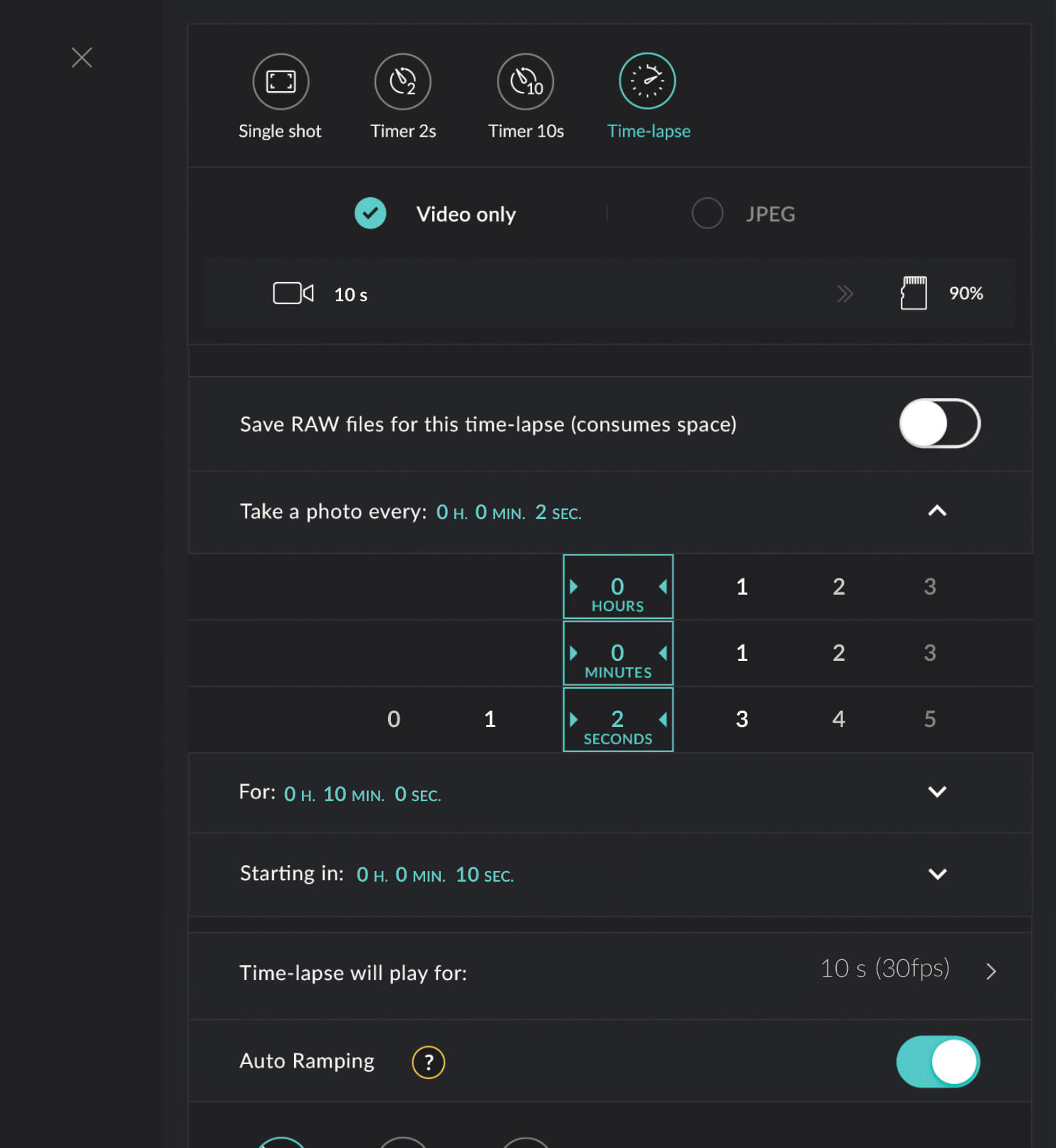
In the case of the DxO ONE, this is 1 photo every 4 seconds with RAW output on a fast-class 10 U3 card. (This said, we can always shoot in .jpg format if we need a shorter interval.)

Evaluating results
Evaluating the resulting time-lapse is always the best way to learn, and thanks to the DxO ONE’s generation of the video immediately after the shoot, evaluation is easier and more comfortable than ever.
If you have chosen a long shutter speed as advised, you will obtain a clip with a good motion blur. If you selected a small aperture, the images will be clear and have good depth of field. And if the interval you chose was short enough, the movement will be continuous and flicker-free. But if the result is not what you want, take advantage of being in a city where the movement never stops, and simply repeat the shot using short intervals and capture durations.
Enrique Pacheco
Travel cinematographer
& time-lapse specialist
enriquepacheco.com
Time-lapse Transitions:Night/Day
Introduction
Probably the most complex but at the same time satisfying effects in the time-lapse world are transitions, no matter if it is day to night or night to day. Being able to see the passage of time and the drastic change of light is perhaps what most attracts anyone who starts shooting time-lapse. Compressing the sunset, the moonrise, or the movement of stars in a few seconds is something wonderful, but at the same time is one of the most difficult time-lapse techniques to master.
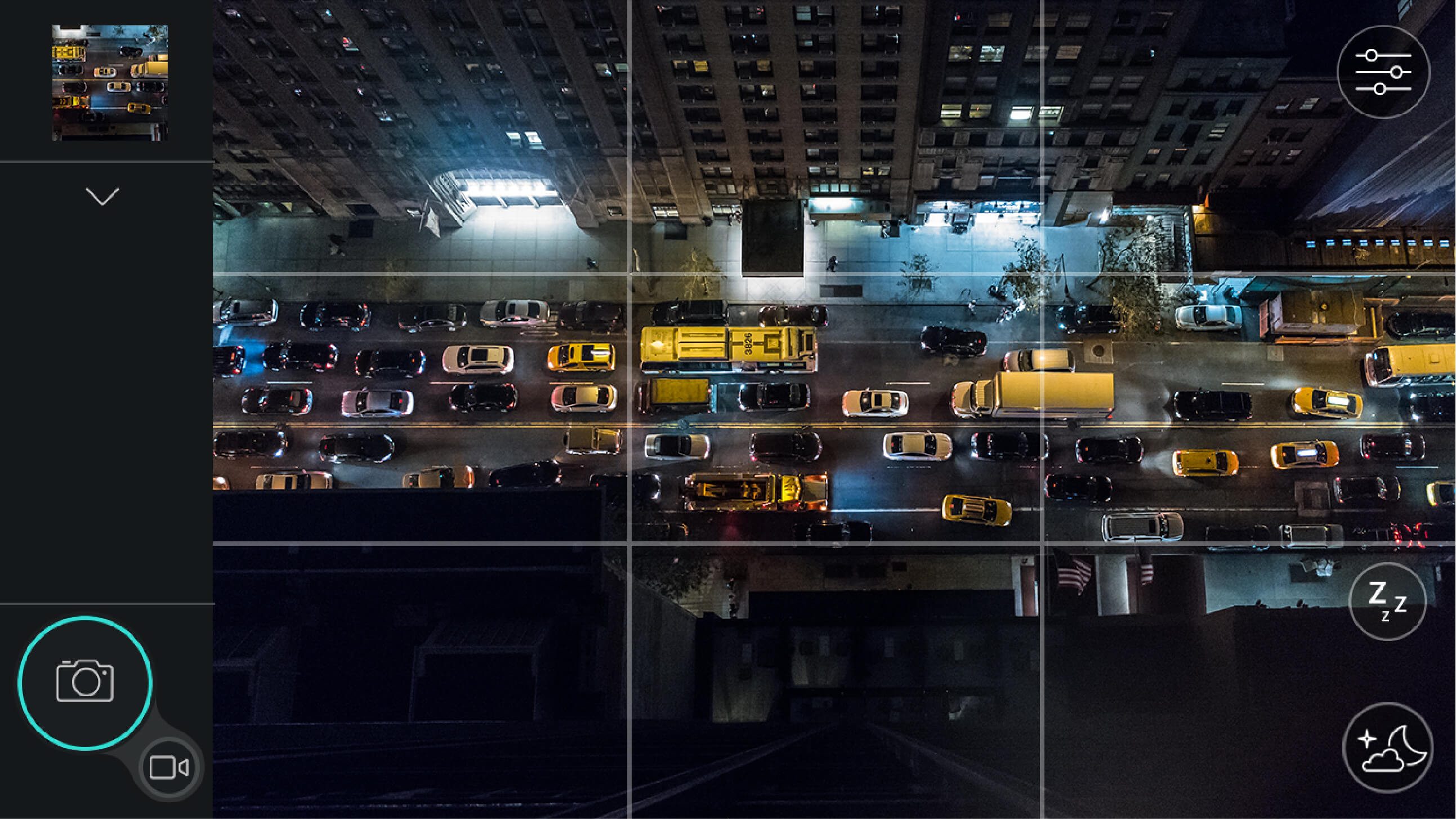
Before shooting
Preparing to shoot a transition is of vital importance, since we will be shooting for many hours, with all the problems that this entails.
We must check that we have enough battery power and space on the memory card, as well as water and food in case we are going to be present during the shoot.
In addition, we must choose a day with few or no clouds, since we are going to use a long interval and the cloud motion would not be fluid and smooth.
As for the location, we must take into account where the sun and moon will set or rise, choosing the best option for our shot. In this sense, it is essential to use an application such as PhotoPills to properly plan our transition by taking into consideration the movement and direction of celestial bodies.
Exposure setup
Contrary to most situations in which manual mode is strongly recommended, for a transition, we must let the camera gradually change the exposure while the sun sets or rises.
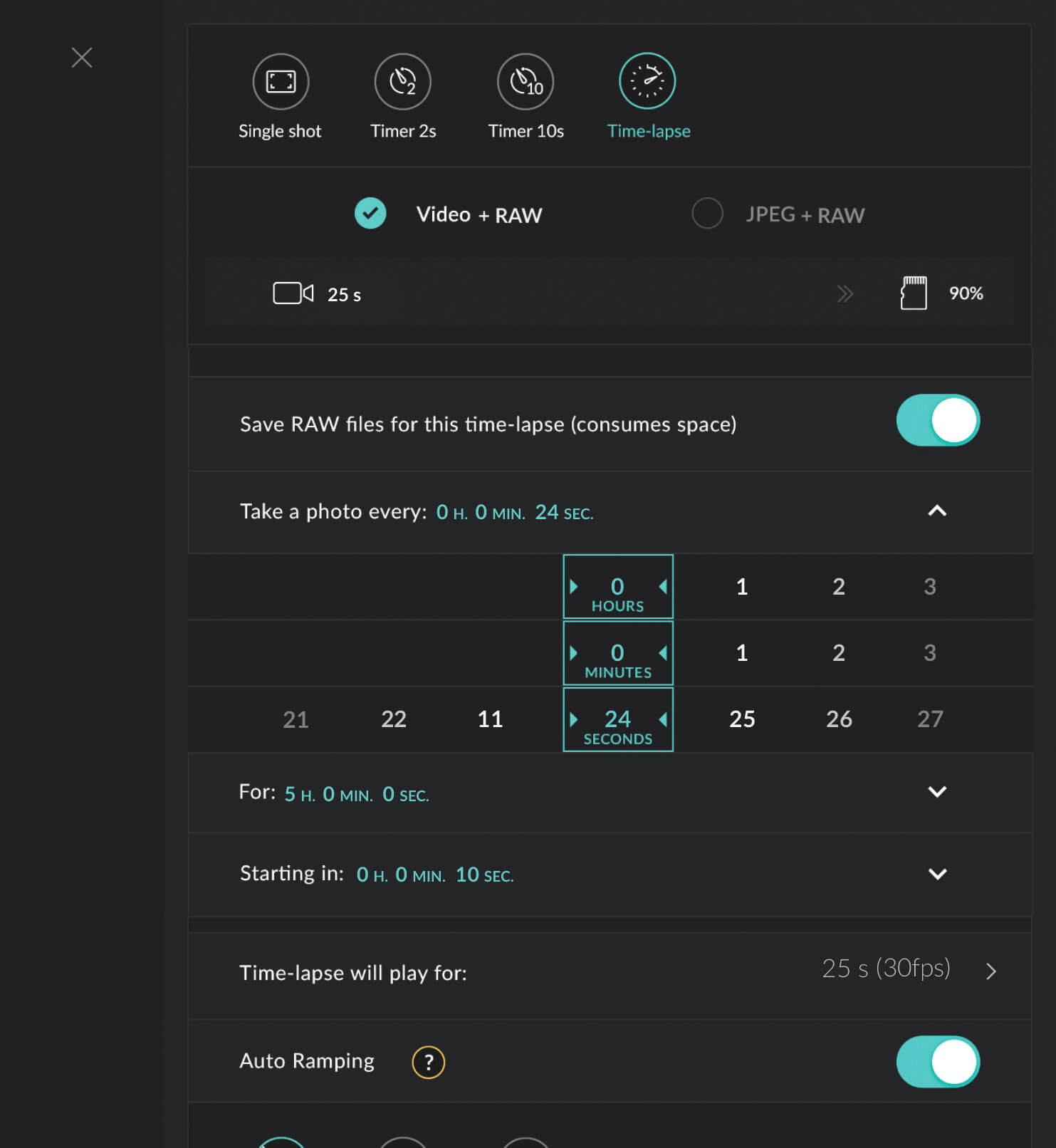
For this task, the DxO ONE has a feature called “Auto-ramping” which can progressively modify the shutter speed and the ISO to adapt the exposure to the amount of light at every moment.
We must also select the auto ISO, since at night we need a higher ISO than in the day, in order to keep the shutter speeds below the interval. And don’t forget to choose the aperture priority mode with a wide aperture for the night period. Select the manual focus mode and set it to infinity.
The DxO ONE can vary the exposure in tenths of a second between shots, so the more shots you take, the more accurate the ramp will be, thus avoiding unwanted flickering.
Interval setup
For transitions, whether day to night or night to day, we will use the longest intervals, since we want to capture an event that will last for many hours. Considering that we need 30 photos to make one second of video, this means that if we take a shot every minute, every hour of shooting will become two seconds of video.
So, if we shoot a transition over 8 hours, for example, we will have 16 seconds of final video, with the indicated interval of one minute. On the other hand, if we want a slightly shorter transition, say 4 or 5 hours, we can select an interval of 30 seconds to have enough footage.
Evaluating results
Finally, after so many hours of shooting, the magical moment arrives when you can see the final result. The DxO ONE will generate a video file after the sequence if you have selected the “Raw+video” option, so you can see the result immediately. Ideally, our clip should have a clean and fluid transition, with no steps on the light changes and no flicker.
If we have chosen a clear day with no clouds, and if we have correctly adjusted the camera (interval, exposure, etc.), this should be the case, but if is not, don’t give up. Just try again and remember that mastering any technique requires a lot of practice.

Enrique Pacheco
Travel cinematographer
& time-lapse specialist
enriquepacheco.com
Time-lapse Motion Time-lapse
Introduction
We all know that movement is key to what makes time-lapse images so appealing—being able to speed up the world and see it in a totally different way. But now it’s time to take things to the next level and add movement to our camera.
This way we will create even more impressive and dynamic videos, playing with different speeds and perspectives, thus giving viewers the feeling of being immersed in our creation.
In this tutorial, we will see how to create these images using the DxO ONE and different motion control systems.
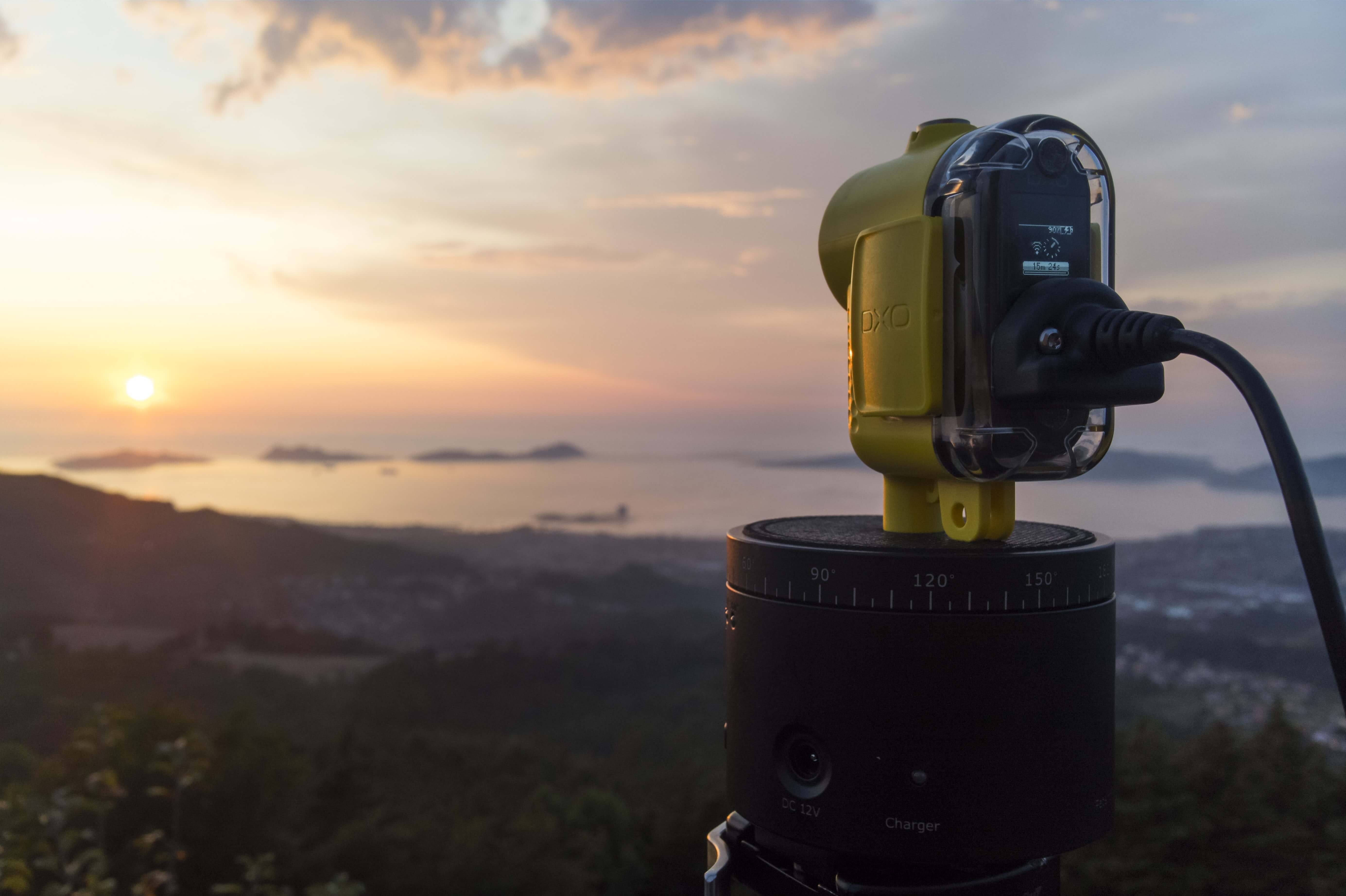
Get to know your rig
When working with motion control systems, it is very important to understand how the equipment (“rig”) and all of its features work, so carefully read the manual and get familiar with the rig before hand.
Whether it is just a pan or tilt head, a motorized slider, or a 3-axis rig, knowing all the features is a must before going to shoot. I recommend starting with a small, basic left-right pan head that lets us create a wide panorama, thus revealing parts of the scene that we couldn’t capture with a single wide lens.
After you get more experience, you might want to try a motorized slider, which will give you more options and will create even more dynamic images—because moving the camera changes the perspective and accentuates the feeling of camera movement much more dramatically than a pan/tilt device.
Of course, the downside is the slider’s size and weight, making it less portable than a pan/tilt head. But since the DxO ONE is so small and light, you won’t need a big rig: even the smallest and most portable devices will work fine.
Sometimes less-experienced time-lapse photographers focus too much on camera movement and forget the basics. There are two things you should never forget: look for a good location and wait for the best light (sunset or sunrise) before dealing with your motion control system.
Exposure setup
Choosing the right shutter speed is very important when shooting with motion control systems. As we explained in previous tutorials, the shutter speed controls the amount of motion blur in our scene, and we know how important that is to achieving smooth images.
Many beginners think that the picture will be blurred if the camera moves while shooting—that is, they think they must stop the motion control system when shooting, and that they should use it to move the camera only between shots (a technique known as “move-shoot-move”), but this belief is totally wrong.
We actually need the motion control system to move in order to add motion blur to the final video. Remember that 30 blurred pictures can create a sharp image in motion—so no matter what kind of device we use, we should always set a reasonably long exposure with our DxO ONE to get motion blur. I usually shoot at at least 0.5s or 1s.
Interval setup
If you’ve followed our other time-lapse tutorials, you are familiar with setting the interval. You know that the higher the speed of our scene, the shorter the interval that you should select.
So when capturing city scenes, we must choose the shortest interval possible, an interval of 1s, and for slow landscapes or night shots, we will choose 20 or 30 seconds.
Since the DxO ONE doesn’t have a port to fire the motion control system externally, we have to manually synchronize it with our rig. This is pretty simple: to synchronize, set the slider or pan/tilt device to the same interval, shooting time, and frame rate as the DxO ONE. Press the DxO ONE’s shutter and then start your rig, and wait until both finish the cycle.
They should end at the same time and the final clip should be perfect. If you own a simple pan/tilt device, set its rotation speed and adapt the duration of the time-lapse on the DxO ONE accordingly. Start the rotation device first, then the DxO ONE.
Evaluating results
If you have followed all the steps properly, you should get a very dynamic video clip—one with perfect synchronization, one that has the camera and the motion control system end at the same time. The two most common errors are :
1 – Setting different values on the devices (in particular, stopping one device before the other)
2 – using a very fast camera movement (producing a choppy and blurred image)
So try setting a long and slow movement on your device, roughly 20s or so, and then perhaps slow down the shutter speed a bit to safer values such as 1/3 or 1/2 second. (And by the way, using an external battery and the DxO One’s Wi-Fi option is very helpful when using a motion control system.)

Enrique Pacheco
Travel cinematographer
& time-lapse specialist
enriquepacheco.com
Time-lapse Night Landscape
Introduction
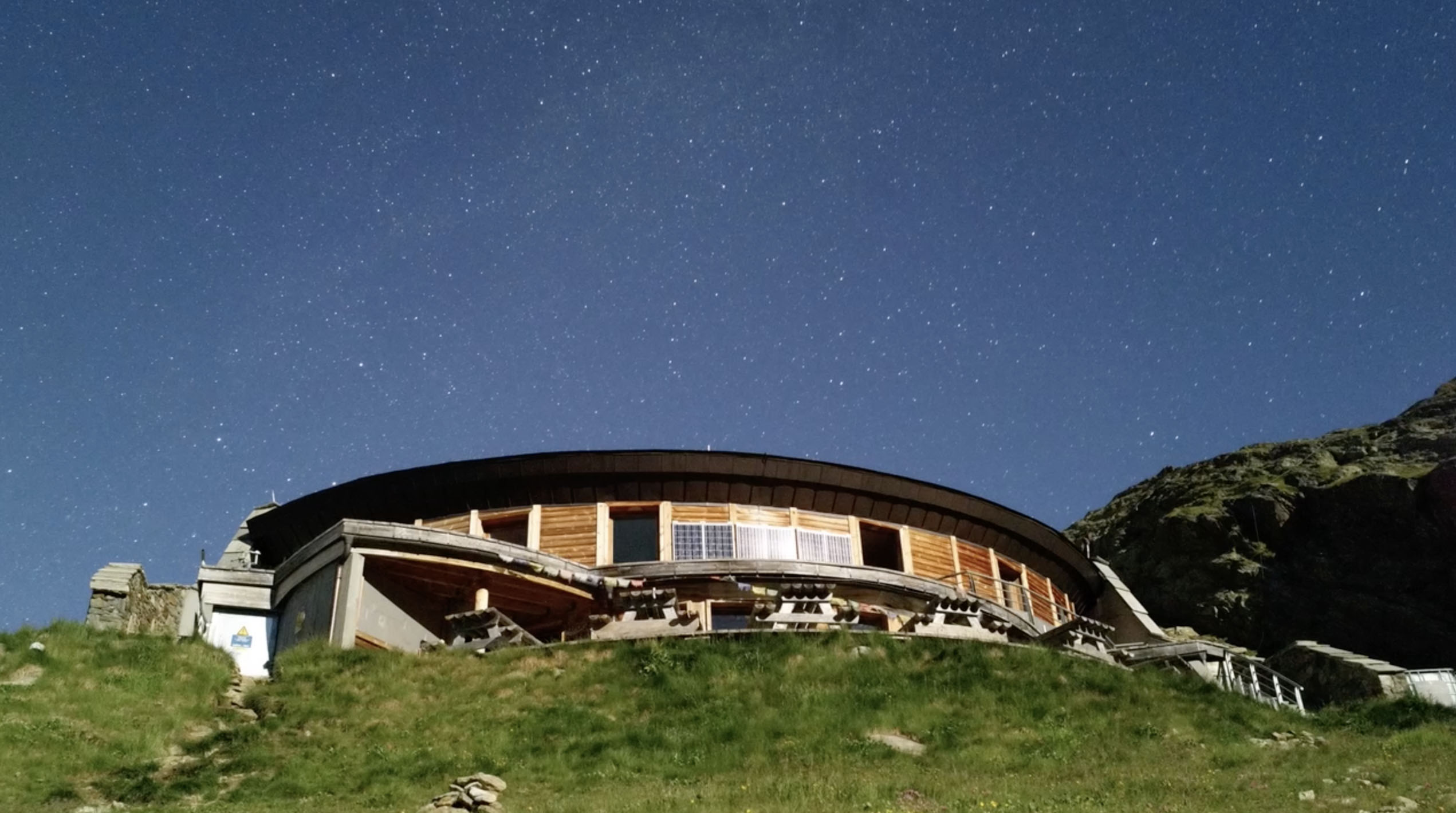
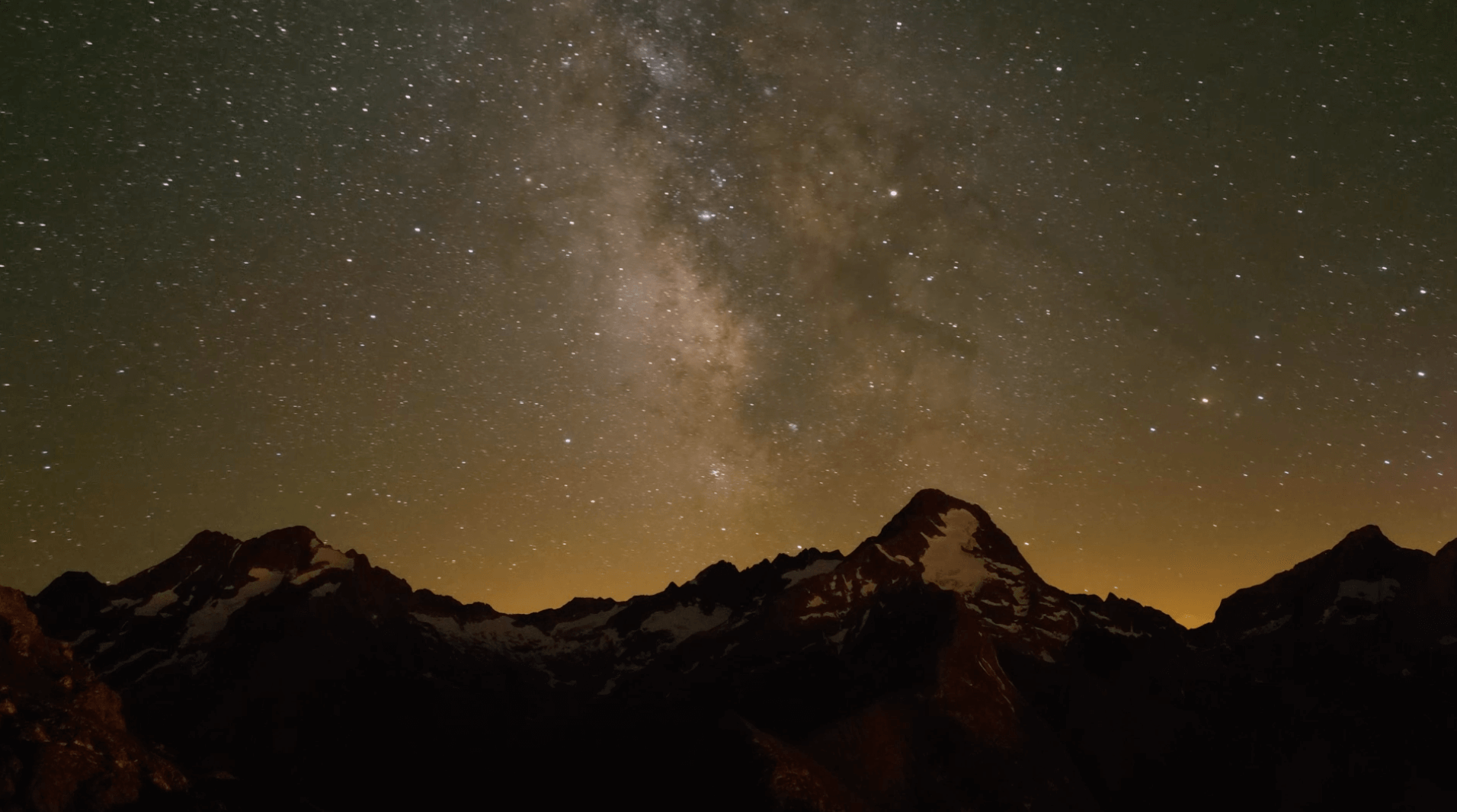
There is probably nothing that fascinates human beings more than the universe — the planets and stars and galaxies.
Being able to photograph them with a camera and show them to the world is one of the most gratifying forms of photography. But with the technique of time-lapse, we can also show the movement of our planet and other celestial bodies.
Unfortunately, creating a time-lapse at night is perhaps the most difficult form of all, but don’t worry, the DxO ONE is designed to make this task easier. Let’s see how.
Before shooting
Planning is always important, but this is especially true when we’re doing time-lapse at night.
The first thing to do is to choose the right night. If we want to photograph a sky full of stars, or see the Milky Way, we must choose a moonless night, as the light of the Moon makes the stars less visible.
On the other hand, if we want to photograph a moonlit landscape, the ideal is to choose a night in which a full or almost-full moon rises quite late, after it is already dark, to see the effect of its light on the landscape.
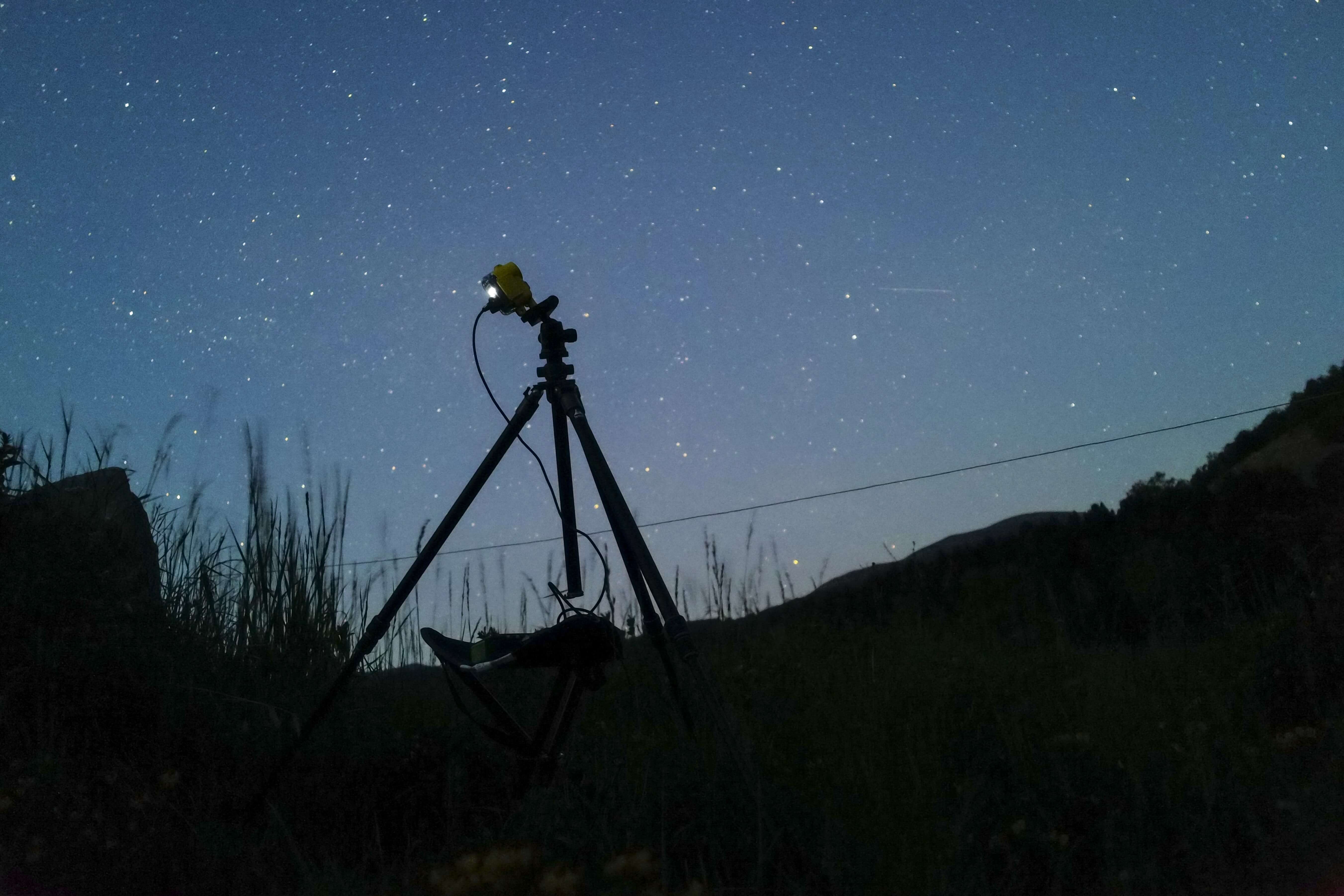
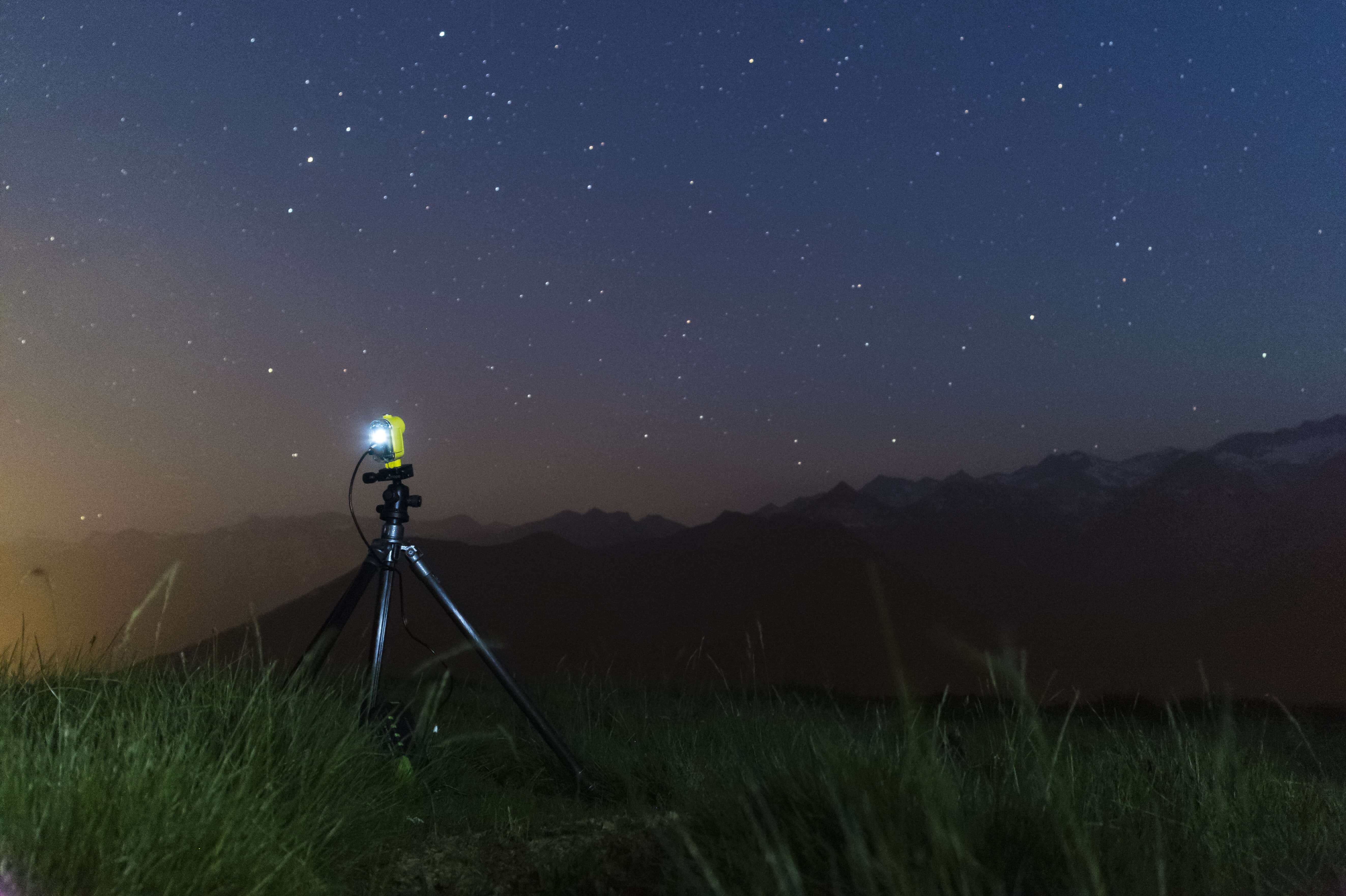
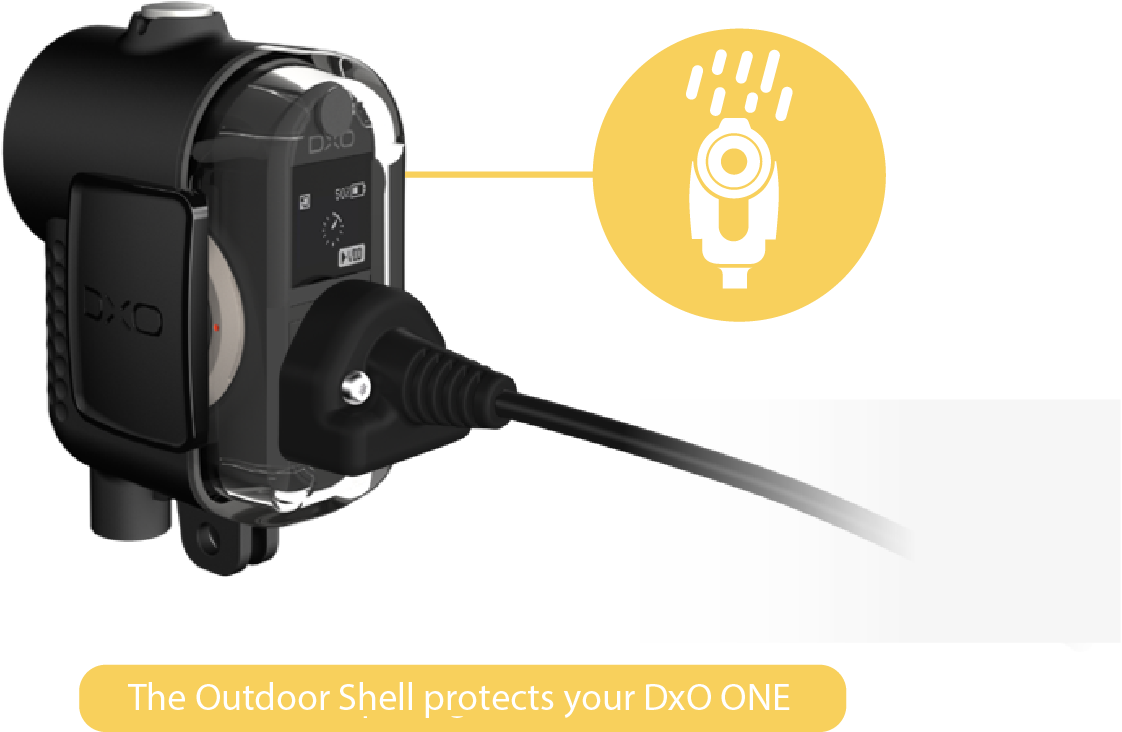
Of course it is very important to make sure that the night will be clear and not very humid (and even if it’s not supposed to rain or be humid, it is always best to put the DxO ONE into its Outdoor Shell to protect it in case of sudden rain or dew).
Exposure setup
Exposure in night time-lapses can vary a lot, depending mostly on whether we are going to shoot the stars and the Milky Way on a moonless night, or if we’re seeking the light of the full Moon on the landscape.
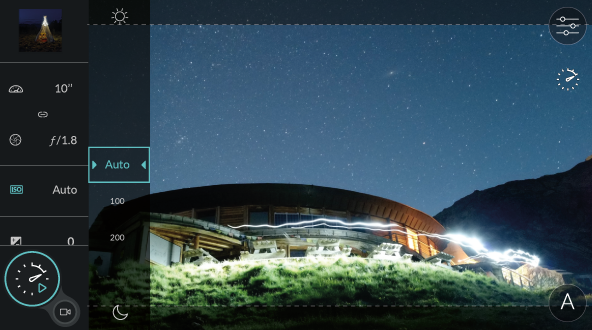
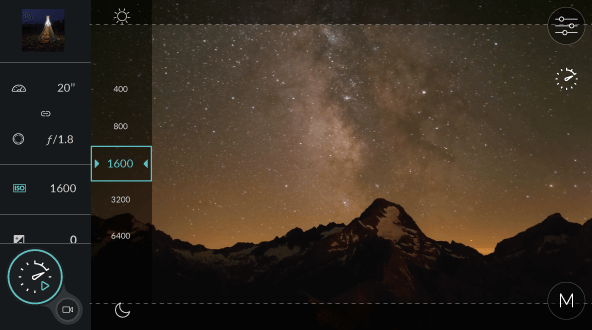
In the first case, we will need more exposure, so we must open the aperture of the DxO ONE to the maximum (ƒ/1.8), raise the ISO to the highest that the DxO ONE sensor allows (taking into account noise, about ISO 1600), and use the DxO ONE’s exposure meter as we adjust the shutter speed to the scene. In the case of a dark night, the shutter speed would be about 20 seconds. Photographing with a full moon, on the other hand, means that we can lower the ISO to 800 to reduce the noise, and adjust the shutter speed as needed.
Interval setup
Setting up the interval in night time-lapses is perhaps the easiest to calculate or choose: just look at the shutter speed you have selected and add 2 or 3 seconds.
For example, if we are going to photograph the stars on a moonless night and we have selected 20s of exposure, the ideal is to use an interval range of 23 or 24s.
This way the DxO ONE will have enough time to record the image and shoot the next without filling the buffer.
Evaluating results
After a night of shooting, and maybe of sleeping under the stars, it’s time to check the result.
If you have used the “video + raw” option, you will be able to see the clip directly on your iPhone, and to check that the exposure is correct, that the camera has triggered the entire sequence, and that your external battery lasted through the night. The most common mistakes for time-lapses at night are usually focusing and exposing.
Make sure you have manually focused on a bright star and have used the DxO ONE’s exposure meter to choose a correct exposure.

Enrique Pacheco
Travel cinematographer
& time-lapse specialist
enriquepacheco.com
Time-lapse Storms
Introduction
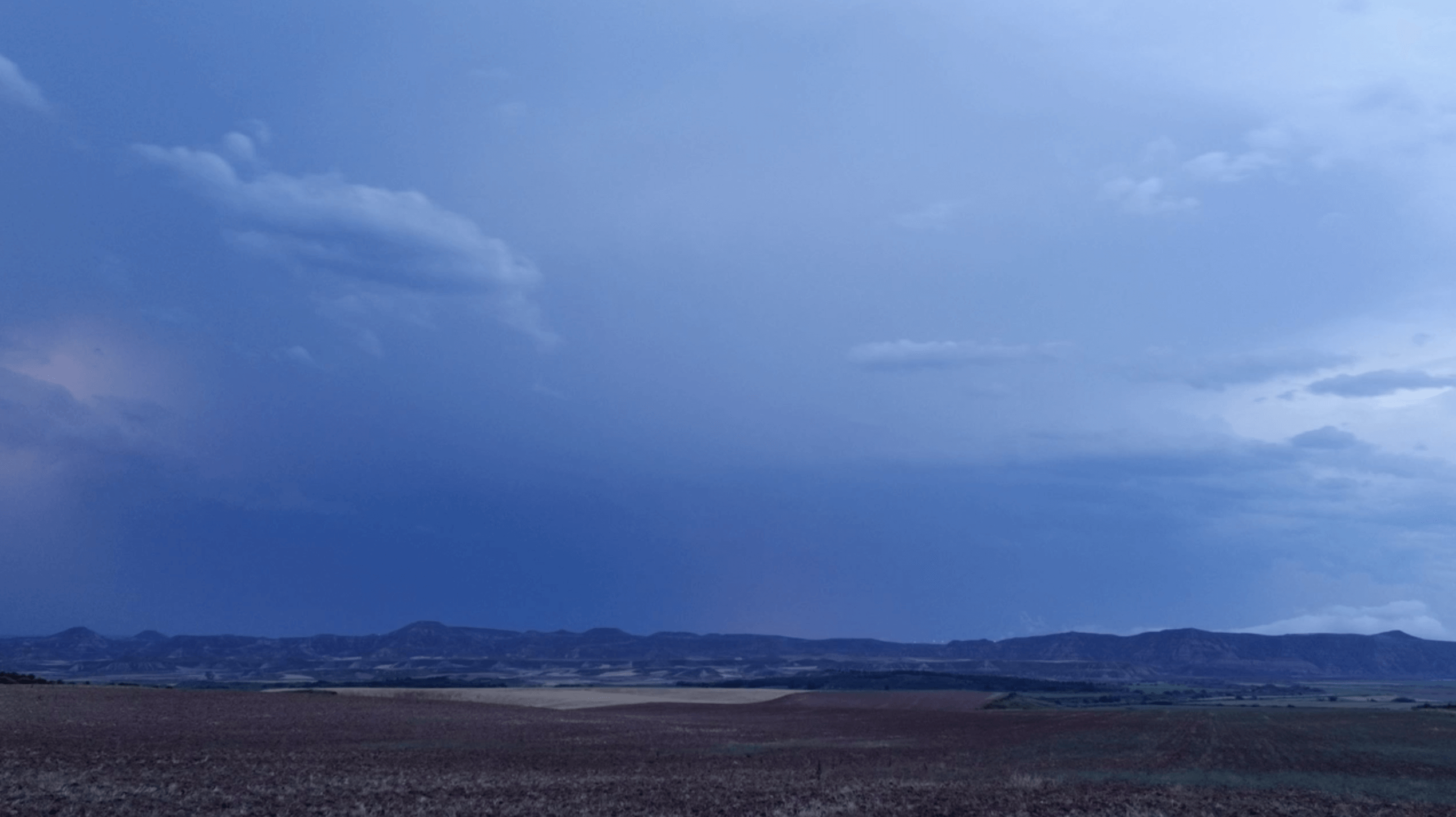
Lightning, thunder, rain, and wind are some of the key elements of a storm. While most people run away or seek shelter from them, for the photographer and even more so for the timelapser, a storm is a unique opportunity to capture spectacular images.
In this tutorial, we will see how to use the DxO ONE to get the best results from the difficult task of photographing storms.
Before shooting
The first thing to do before going out storm-hunting, is to gather information about the weather, such as storm activity, wind direction, etc.
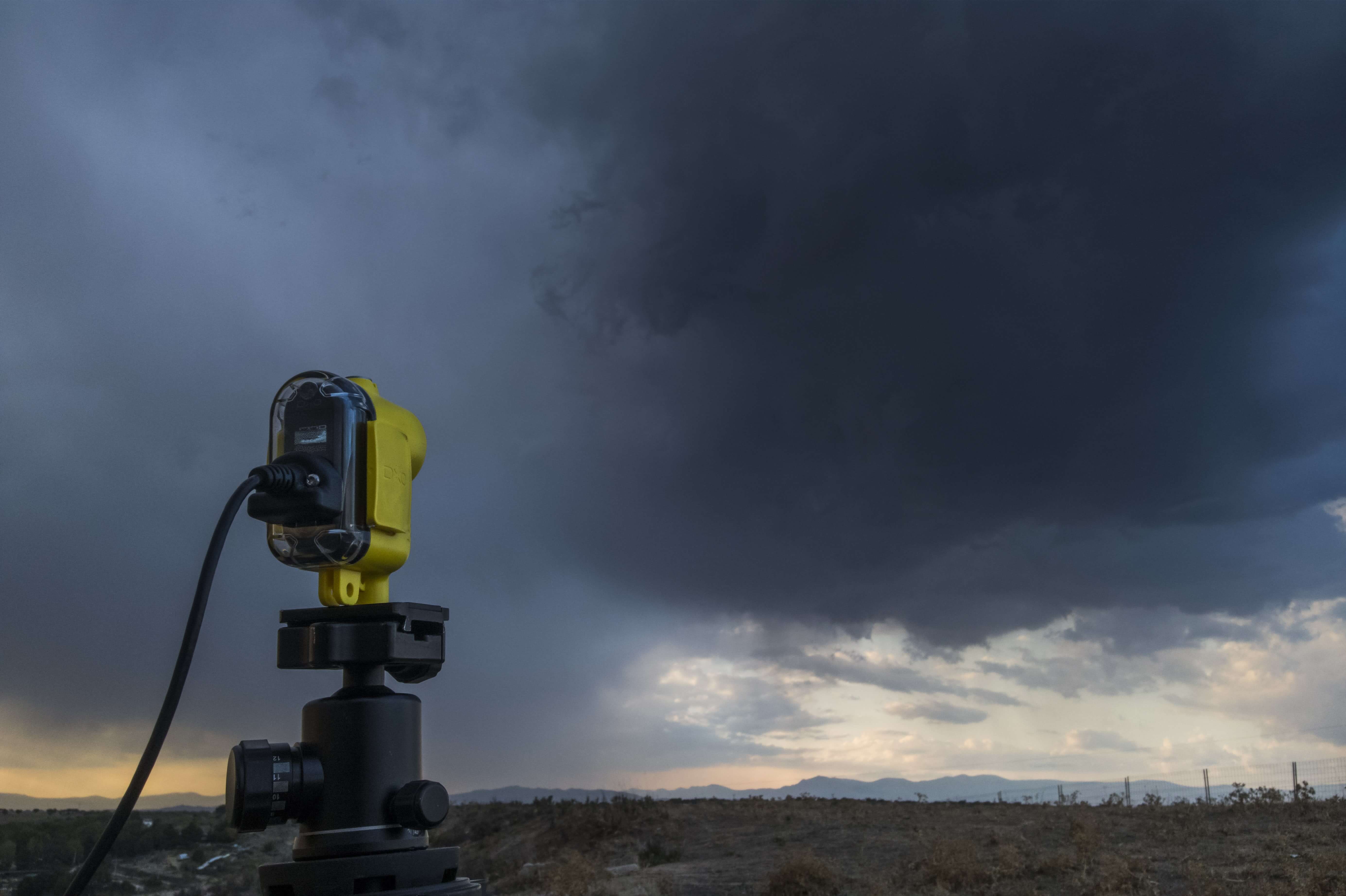
One recommended app, “Windy,” can provide all the information we need. We must also bring waterproof clothing, the Outdoor Shell protective case for the DxO ONE, and a travel towel to dry our equipment if necessary.
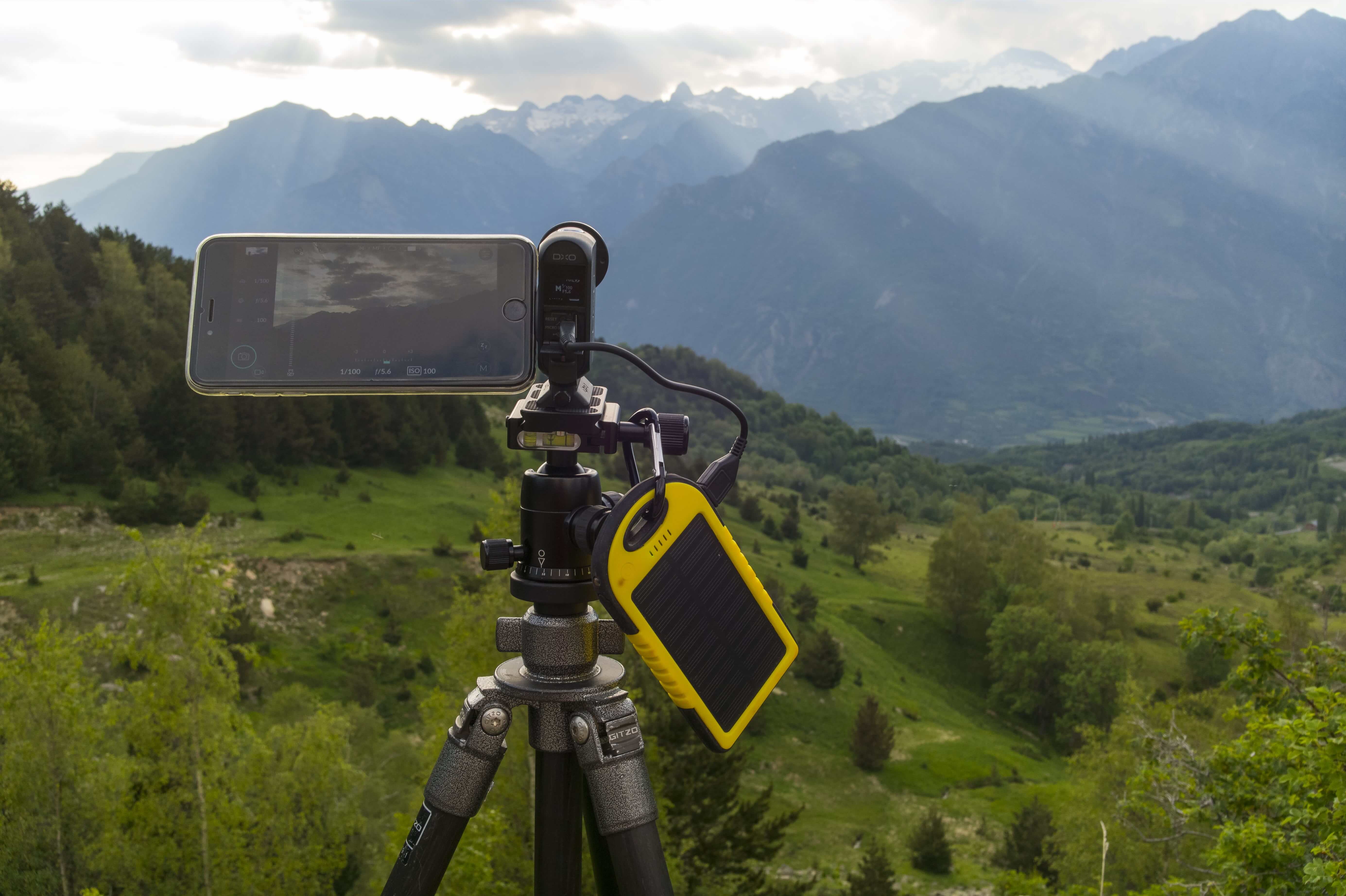
As always, we will take our charged up external battery to power the DxO ONE for a long period of time.
Exposure setup
Storms obviously show up at any time of day, but photographically speaking, the most attractive are those that appear at night, because we can see the lightning much more clearly.
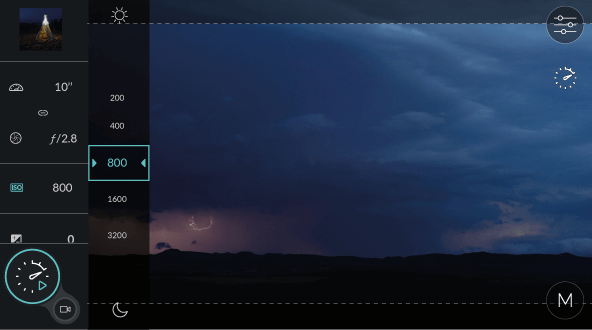
Since we don’t know when a lightning bolt is going to strike, we need to set up the camera to capture images at all times. This means that we must take long exposures of at least 10 seconds, for example, which sometimes will pick up even more than one flash of lightning.
A moderate sensitivity of about 800 ISO and an aperture of ƒ/2.8 will be enough in most cases.
This exposure may seem insufficient for a night situation, and if we take a test shot, our image will be a bit dark; but remember that when the lightning strikes, the sky will light up considerably.
If we choose a longer exposure — something suitable for a night scene, for example — the lightning strike will overexpose the frame that we really want to get right. So do some testing and choose a suitable exposure.
Interval setup
As we said before, we want the DxO ONE to capture images as long as possible, so it doesn’t miss any lightning, so the interval time between shots should be the lowest possible.
Setting the shutter speed to an interval of 12 or 13s will be the most appropriate — that way we give the ONE enough time to write the photo rather than to fill the buffer, but don’t lose much time between shots.
Remember that we need 30 shots to create 1s of video, so choose at least 10 or 15 seconds of footage and then calculate how long you will have to be at the scene.
Evaluating results
If you have been lucky and the storm has provided you with a good electrical activity, your images will be stunning.
If you have used the “video + raw” option on the DxO ONE, you can watch the clip on your iPhone to check that the rain or wind has not interfered with your shot. (Sometimes there’s water on the lens, and the wind can produce vibrations if your tripod is not sturdy enough.) Make sure that you have manually focused to infinity and that you have used the DxO ONE exposure meter to select a good exposure. If you have followed all these tips, your sequence should be awesome!
If you missed something or if you discover some problems, check out our tutorial on “how to fix my shot” for good information on how to improve your sequences using more advance software.

Enrique Pacheco
Travel cinematographer
& time-lapse specialist
enriquepacheco.com
Time-lapse Atmospheric: Clouds
Introduction
When we think about time-lapse photography, probably the first thing that comes to mind is a beautiful landscape with elegantly-moving clouds. Clouds and other meteorological phenomena such as fog or storms have the starring role in many time-lapse movies we see today.
In this tutorial, we will explain how to achieve the best possible result when capturing clouds and other weather phenomena. Because weather and clouds can vary widely both in speed and evolution, we must adapt our exposure and interval to get the right result.
Before shooting
Before we even start to set up our camera, we should visually analyze the scene and evaluate all the elements that are going to come into play. Are the clouds moving slowly or fast? If there is fog, is it building up or dispersing? If it is a storm, is it approaching us or moving away?
It is important not only to analyze the current situation, but to try to predict the evolution of the elements, since in most cases we will shoot for a long period of time, and that evolution is going to impact the resulting video.
So first carefully study the weather forecast, both for clouds and wind, as well as for the position of the sun and its direction.
Exposure setup
Selecting the right exposure is one of the keys for getting a good result in time-lapse, in addition to choosing the right mode.
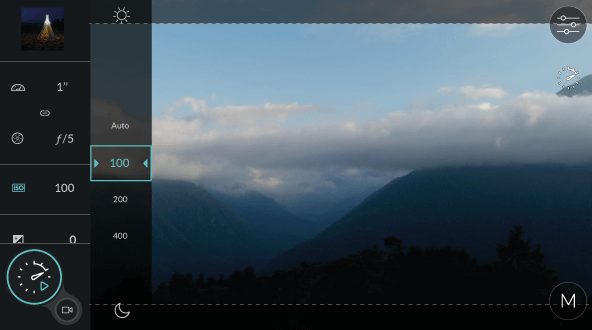
In the case of this tutorial, as a general rule, we will use the manual mode (M), and we will choose a fairly closed aperture, between ƒ/5 and ƒ/6.3. This way we will achieve a homogeneous exposure, without flickering or undesired variations, and at the same time obtain a wide depth of field and good sharpness.
As for shutter speed, for a pleasant and fluid movement of our video, we must use long exposures, between 0.5 and 2s. This can be difficult to achieve if the scene is very bright, so using a neutral density (“ND”) filter is highly recommended.
If you don’t have such a filter, you should select the DxO ONE’s smallest aperture, which is ƒ/11. Lower the ISO to 100 in manual mode to slow down the shutter as much as possible. Finally, choose the manual focus mode, with the distance set to infinity.
Interval setup
The choice of interval is the most important part of our setup. This is the factor that most controls the final result of our time-lapse, so we must do it carefully. A good rule to keep in mind is that the faster the speed of movement of our scene, the lower the interval must be.
For example, in a cityscape, with fast movement of cars and people, we should use a very short interval, 1s or 2s, while in a desert at sunset, where the only movement is of the sun, we must select a much longer interval, about 30 or 40s.
Clouds, storms, and fog exist in a medium range of movement which varies depending on the speed of the wind. Therefore, a good starting point would be 3s for clouds that move very fast, or 5s for somewhat slower clouds or fog.
These are approximate examples, so you should experiment with different choices. When in doubt, choose a shorter interval, since you can always accelerate the final video if it’s too slow, whereas if you chose a too long an interval, you will not be able to slow down the video.
Evaluating results
One of the best ways to learn and grow, not only in terms of time-lapse technique, but in life generally, is by trial and error. Practice as much as you can and carefully analyze the final result to see which mistakes you made and to figure out how to solve them in later shoots.
If you have followed the above tips, you should obtain a time-lapse with smooth, flicker-free movement and adequate speed. If on the contrary you get an image with sudden changes of exposure, with excessive movement and little fluidity, try choosing a smaller interval and a longer shutter speed.

Enrique Pacheco
Travel cinematographer
& time-lapse specialist
enriquepacheco.com
Contrast Composition
You can use a photo’s contrast to create artistic effects. You can technically alter the contrast using the metering mode and exposure compensation.
Contrast in an image depends on the various light sources and the presence of light and dark elements in the frame.
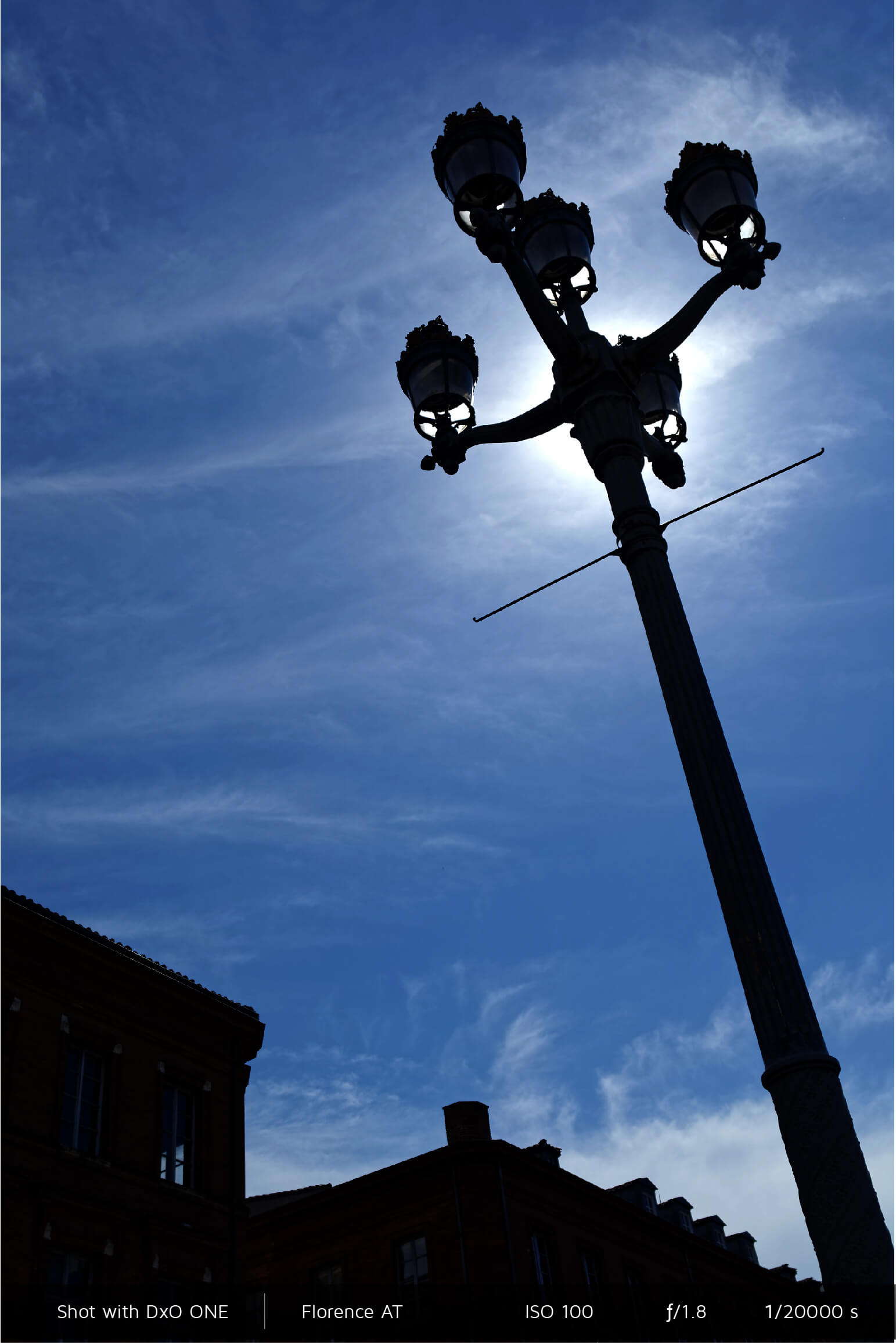
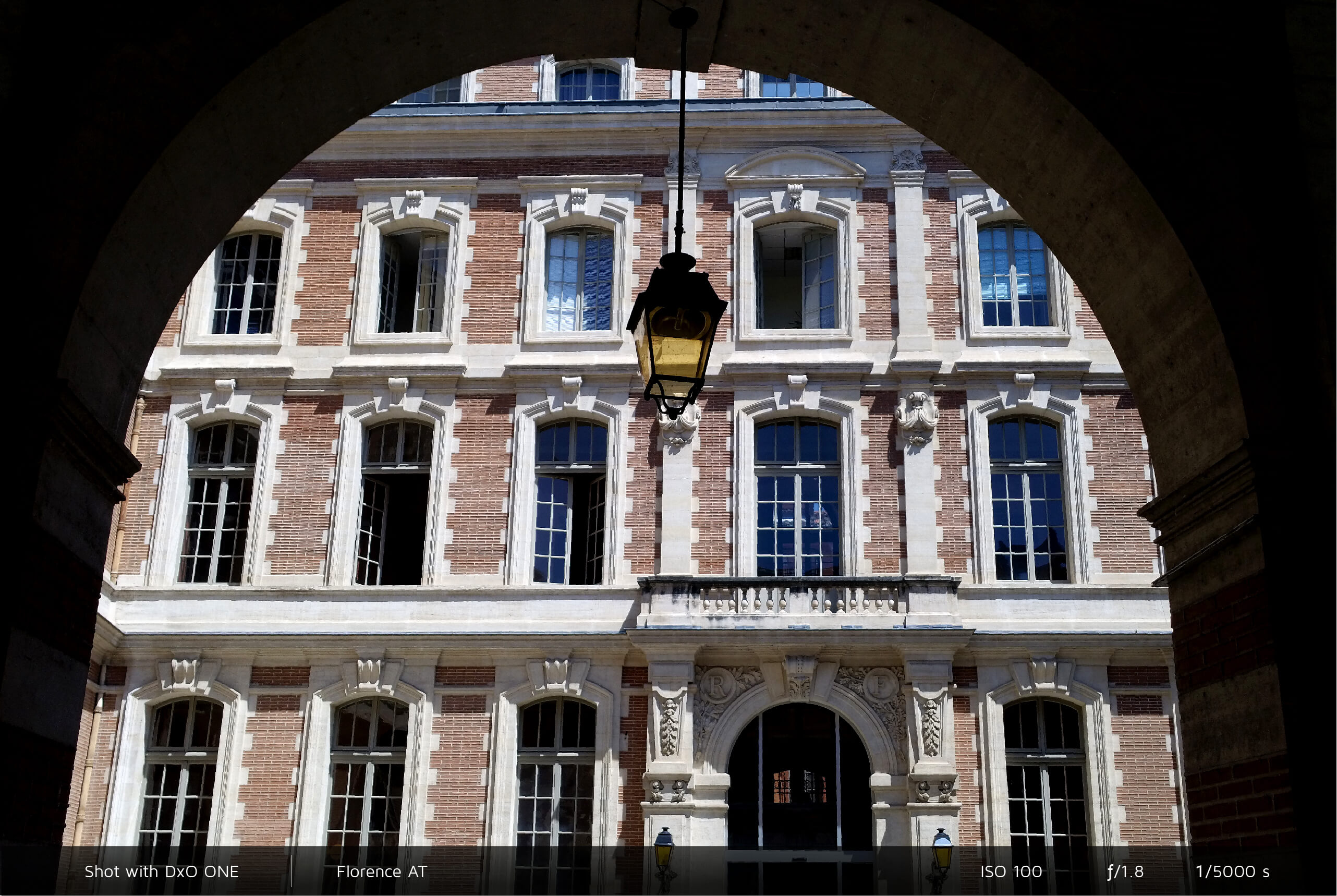
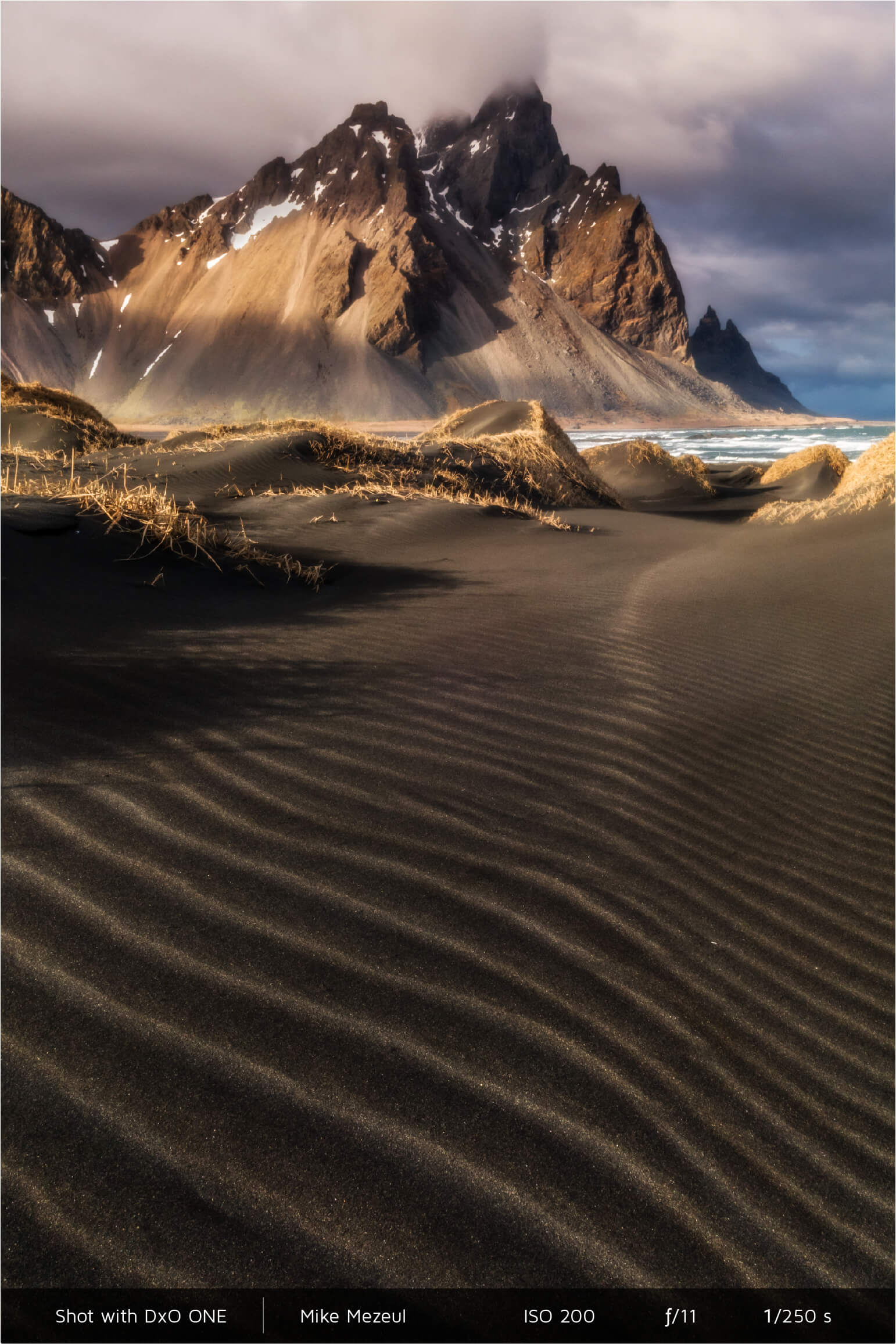
In the summer, the light in the middle of the day is very harsh and creates significant contrast between light and dark areas. Photographers typically choose to shoot with their back to the sun to have more even lighting. By facing the sun (backlighting), you can achieve unique effects. For example, backlit shots let you take silhouette portraits. Your subject is separated from the rest of their well-lit environment, creating a beautiful contrast between light and shadow that emphasizes the subject’s outline. Use an element such a shadowed arch to frame the image and to add depth and contrast.
In the winter, photographing snow amounts to taking a picture of a white field surrounded by high-contrast subjects. In AUTO (automatic) mode, your DxO ONE can apply a medium exposure to the entire scene, but because there are many light values, they tend to be overexposed — the snow turns gray and loses its contrast. For a better effect, use the exposure compensation feature, which you can use with all shooting modes. If you still can’t capture the result you want, select M (manual) mode and test several different setting options to find the one you like the best. The goal is to find a good balance between the light and dark areas in the scene, with the understanding that if the snow is too light, the depth and texture will disappear.
After you wrap up your skiing adventure and shoot at the end of the day, the contrast will be less pronounced, making the exposure easier to adjust.
Technically, you primarily adjust the contrast using your DxO ONE’s three metering modes.
Matrix metering calculates an average light value and reduces contrast. This is a good option when the sun is bright and you want to keep as many details visible in the light areas as in the dark areas.
Center-Weighted metering, in contrast, bases its calculations on the center of the image; you can use this in most cases if the photo does not have much contrast.
Spot Weighted metering affects only the very small area you select (i.e., the focus point). If your selection contains a very bright area, such as a lamp against a black background, the lamp will be properly exposed, but the rest of the image will be underexposed or feature high contrast. This effect produces a type of image called “low key” Conversely, if the subject is dark, the background will become very light or even overexposed — a “high-key” image.
When the sky is gray or cloudy, shadows can be absent. The resulting image is restful and soft but lacks relief and contrast. You can increase the contrast by changing the exposure provided by the meter. To do so, use your DxO ONE’s exposure compensation feature to underexpose your image. This feature, which is accessible in Auto, P (program), A (aperture priority), and S (shutter priority) modes, lets you increase the contrast by moving the cursor to select the desired value. If the image is still too soft, increase the contrast even more using photo editing software.
When the contrast in your scene was too strong and you weren’t able to correct it while shooting, you can always recover the dark or light tones in post-production with DxO’s editing software. You can also lighten up shadows as you’re taking the picture by changing the intensity of DxO’s Mobile Smart Lighting feature in your DxO ONE settings (more details in section “Shooting settings”).
Compositional layers and camera shot types Composition
Use compositional layers to create depth in your image.
The various camera shot styles are great for portrait photography.
An image must have a main subject and one or more secondary subjects. It’s important to think about the placement of each of these subjects when composing your photo. Layers and shot styles are useful for helping you compose and frame a harmonious, balanced image.
You can combine compositional layers and camera shot styles as needed, depending on your subject:
You can include a variety of layers in your scene:
In an image with several layers, the area where you choose to focus is the middle ground. You have to decide in which layer your subject should be in focus. With your DxO ONE in AF-S or AF-OD mode, tap your smartphone screen to determine your focus area.
If you are far away from the foreground, the subjects will appear to be all in the same layer. This reduces the sense of depth and three-dimensionality in your photo.
When taking a landscape photo, place an element such as a branch or rock in the middle ground to give added depth and avoid taking a flat image. A large field in the countryside is shown to better effect if a beautiful tree is in the middle ground. When the sun is low on the horizon at the end of the day, a series of fields or small valleys creates incredible visual depth.
When taking architectural photos, carefully place an object in the middle ground to give the photo structure and fill up otherwise boring empty space.
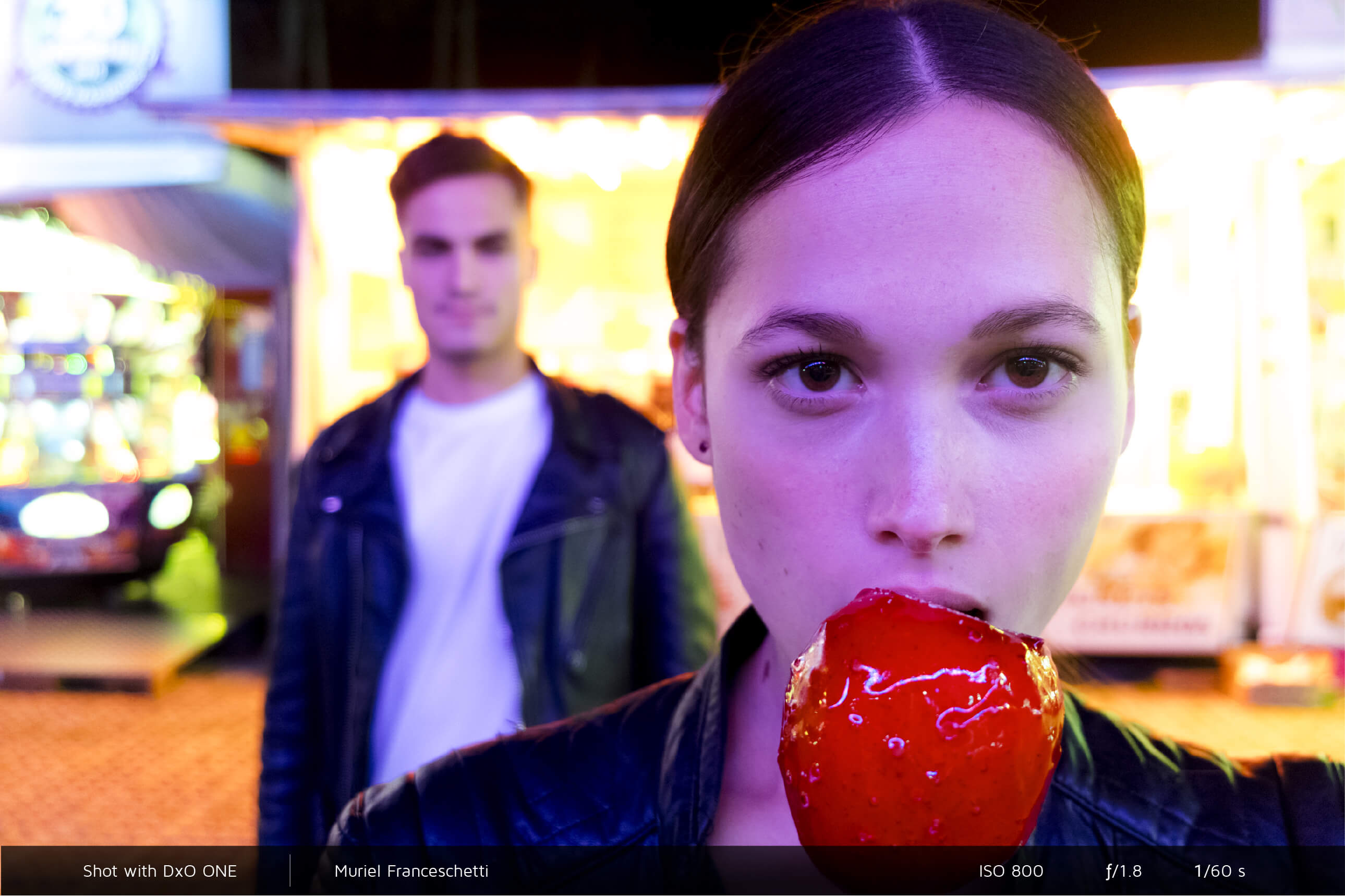
You can use various types of camera shot styles in portrait photography. To switch styles, all you have to do is move closer or further away to your subject. Close in, the subject’s surroundings are less visible, and in some cases, you can entirely crop out the person’s environment . On the other hand, the farther away you are from your subject, the less important the subject appears; and the more you include the subject’s surroundings (which is the case when taking a wide shot), the more important to your visual story the surroundings become.
Here are the most widely used camera shot styles:
It’s up to you to decide which layer or style is best depending on how much you want to showcase the person and/or their environment.
Framing and composition basics Composition
To capture a beautiful and well-balanced photo, position your main subjects along the lines and/or focal points of the image as you move from left to right. Experiment with shapes and colors.
To obtain a perfect photo, take the time to carefully plan your composition by correctly placing the various elements in the image.
In photography, as is the case with all disciplines involving image composition, it’s generally best to divide your frame along a 3×3 grid. This produces lines along each third of the photo that you can use to place the important elements within the frame. Right after you take a photo, look at it with the composition grid, which you can activate in your DxO ONE’s settings menu and then display by swiping down on the preview screen. This grid also lets you check your photo’s horizontal orientation.
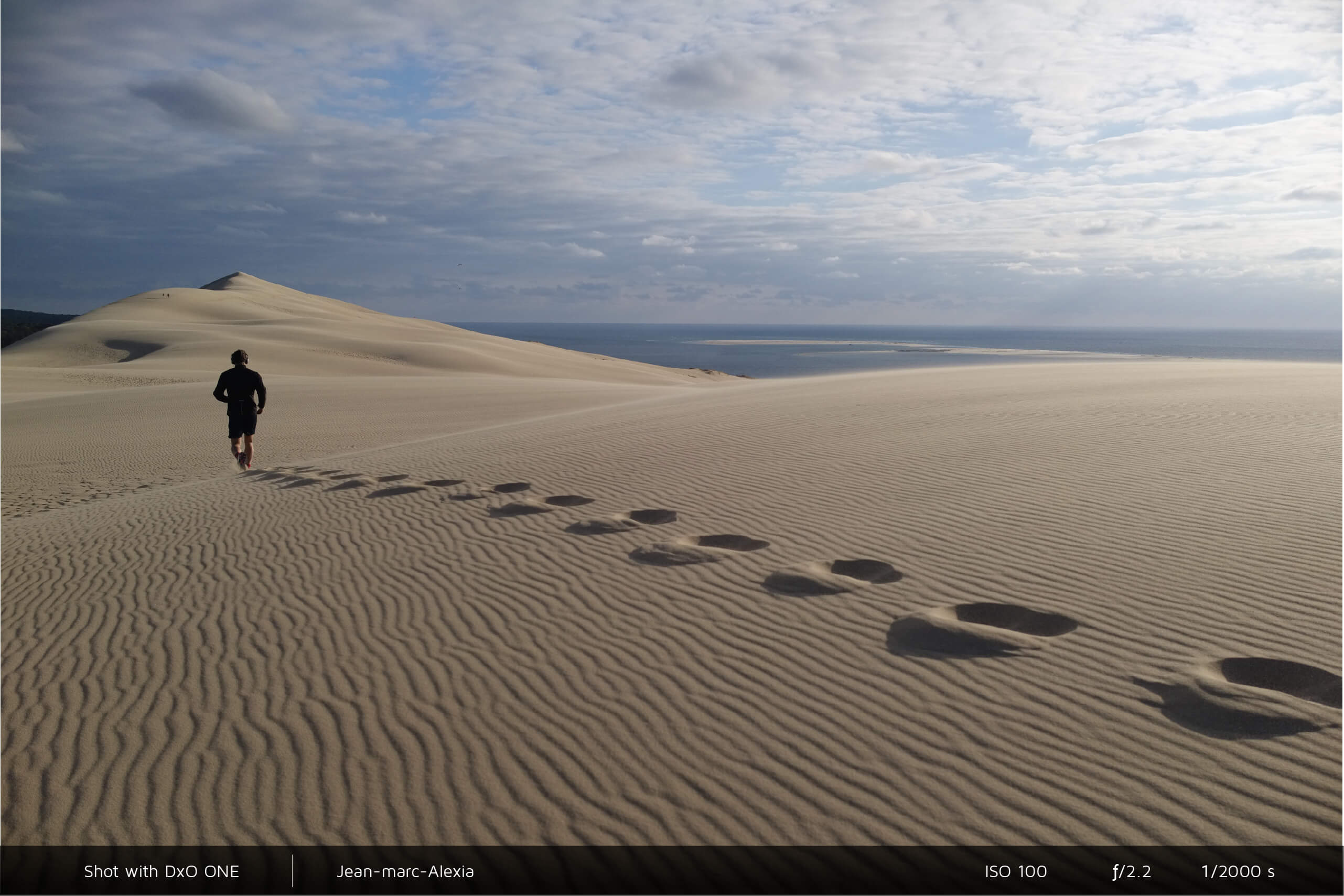
The places where the lines dividing the photo into thirds intersect are called crash points. By placing the important elements in your photo at these points, you will add impact to your composition.
(Photographer Jean-Marc Alexia)
Lines, especially horizontal lines, are part of every composition. In Western culture, these lines direct the eye from the left to right, corresponding to the direction such cultures read print. An image based on these horizontal lines will appear balanced, stable, and strong.
Photography is much more than a horizontal frame, however. You can also rotate your smartphone and the DxO ONE to compose your image using a vertical orientation, which is especially suited for portraits. For landscape or architectural photography, a vertical orientation adds impact to the image and makes your shots more diverse.
Diagonal lines, which are often a part of architectural photography, add depth and movement. Curves also direct the eye within an image, but do so much more gently. Observe and photograph rounded shapes in your environment, such as a spiral staircase, a winding road, or the top of a tree.
To determine the correct angle for your shot, carefully observe the area and your subject before getting closer. You can use high-angle and low-angle shots to alter the subject’s proportions. For example, if you’re photographing a building while standing at its base and looking up, the bottom will appear wider than the top. The skewed perspective emphasizes the subject’s height.
Color also plays a role in composition and can strongly affect an image. Blue conveys a feeling of calm and simplicity. If you like powerful and expressive images, opt to emphasize any red or yellow elements in the scene.
Using a neutral density (ND) filter Accessories
An ND filter darkens the entire image and lets you achieve a variety of artistic effects.
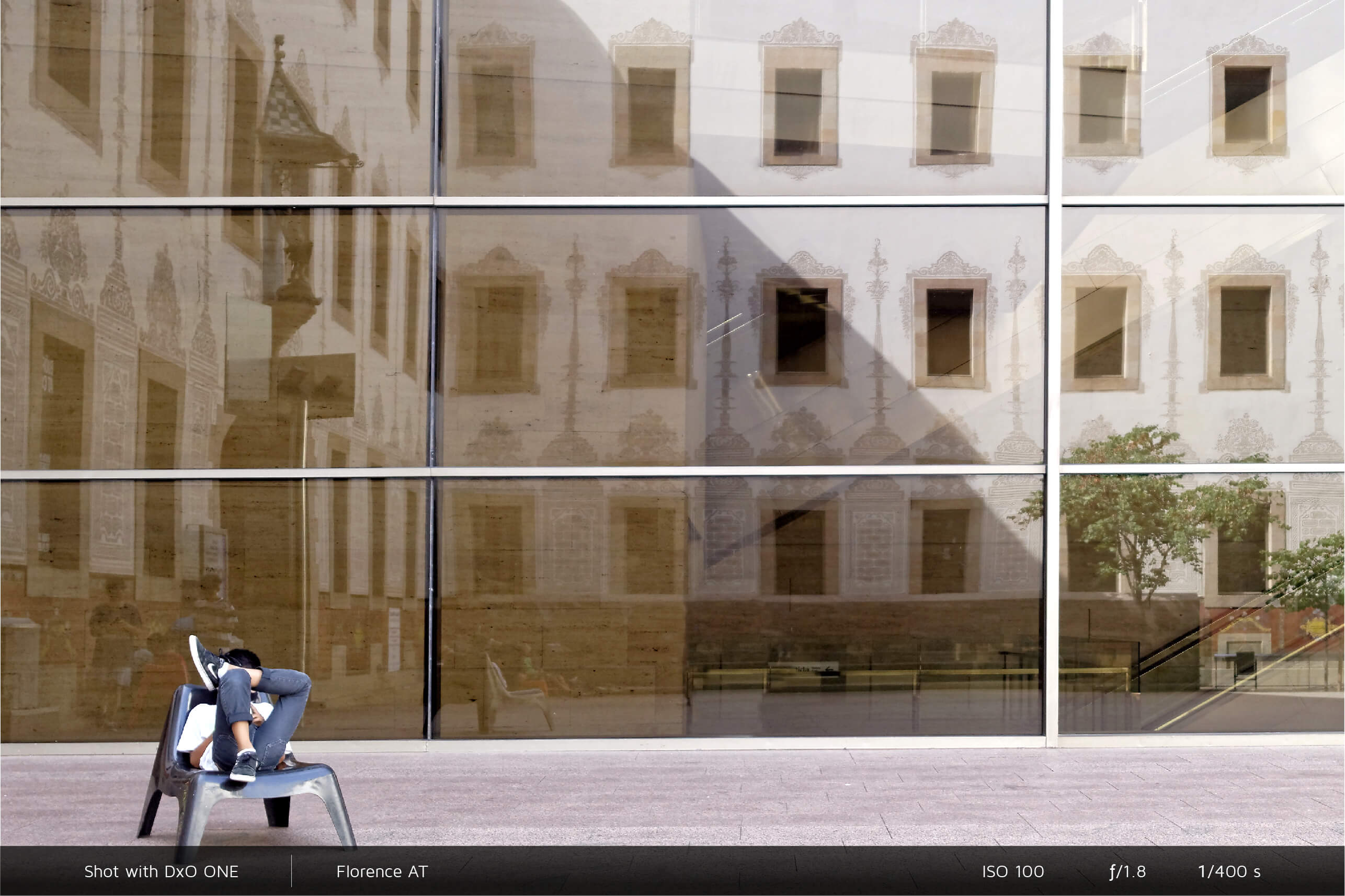
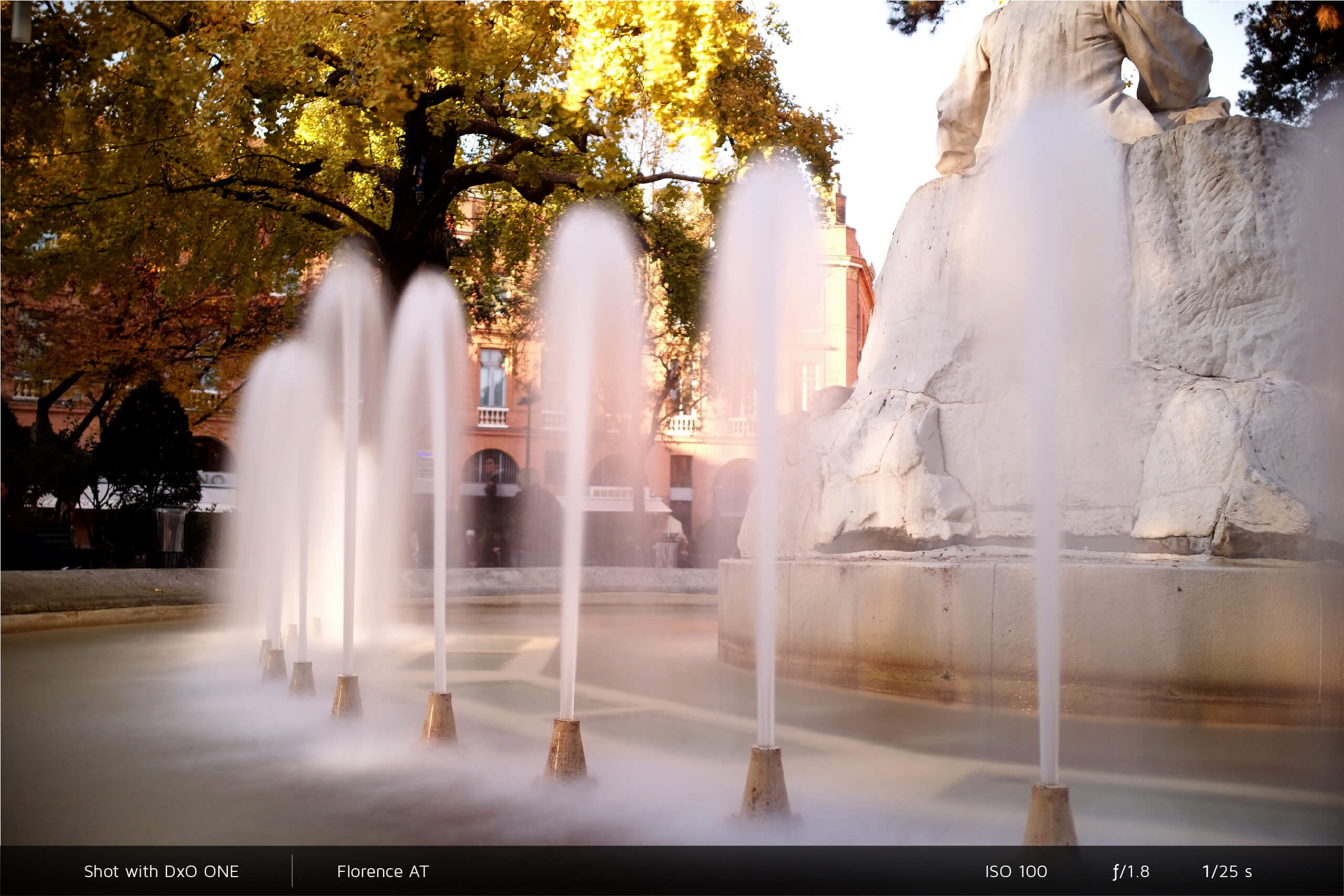
Bright light during the day, especially in the summer, can produce overexposed (too light) images, even if the aperture on your DxO ONE is closed as much as possible (ƒ/11) and the sensitivity is set to its lowest value (100 ISO). In this case, a 0.9 ND (neutral density) filter is all you need to reduce the amount of light reaching the camera and create a perfectly-exposed photo.
(Photographer Florence AT)
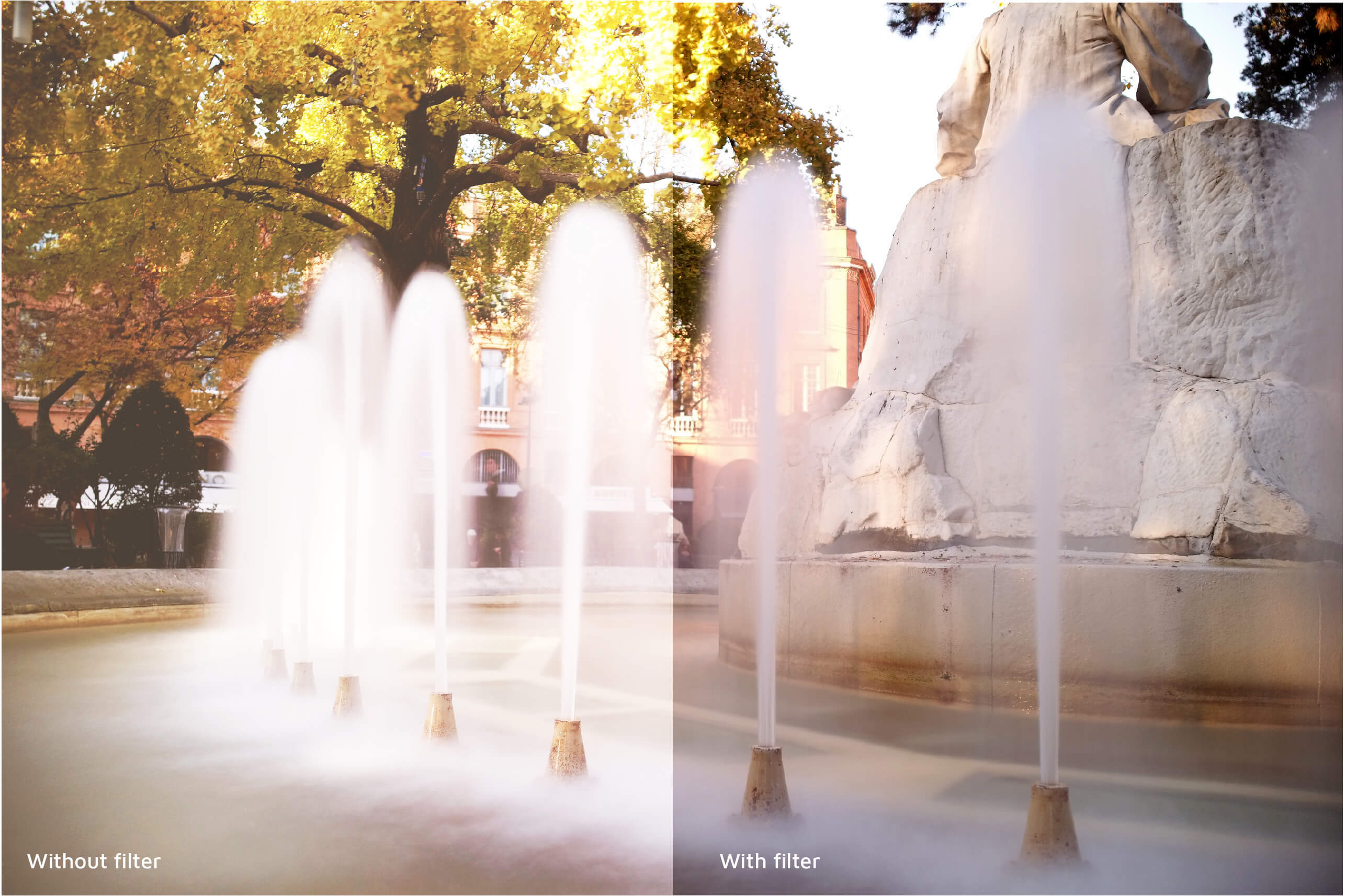
You can use ND filters with all shooting modes available on your DxO ONE. This filter reduces ambient light so that you can take pictures in the middle of the day with a long exposure time. Depending on the type of filter you’re using, the exposure time can last up to twenty seconds or more. The ND filter prevents the image from being overexposed even when shooting in bright light and lets you achieve artistic effects with daylight—even with a wide aperture setting.
(Photographer Florence AT)
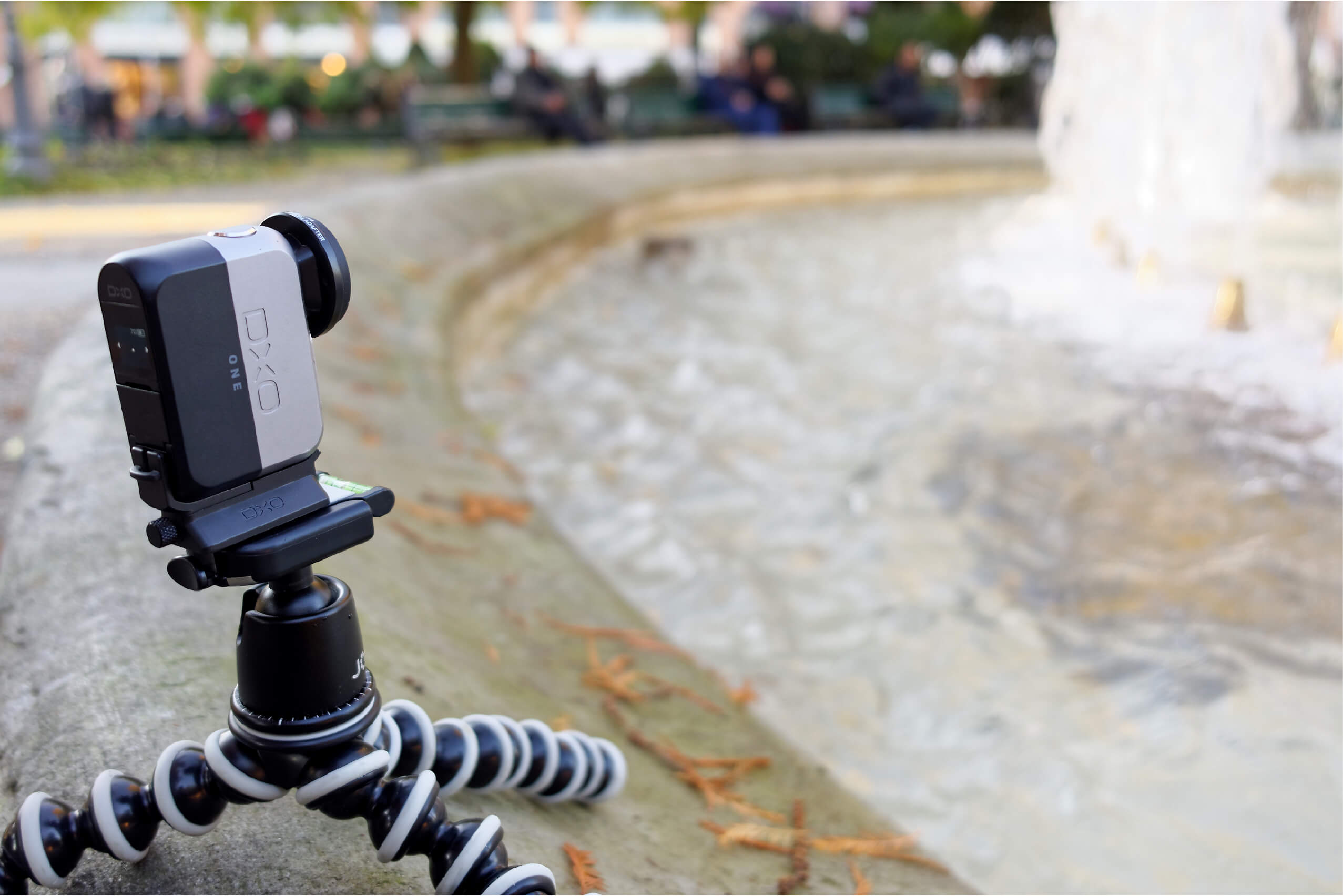
You can easily attach an ND filter to your camera with the DxO ONE Optical Adapter accessory. You can also add it to the DxO ONE Outdoor Shell. DxO offers two Heliopan models that won’t alter color or create a single dominant color in the final image. The 0.9 ND filter reduces light by three stops (eight times less light), while the ND2 model reduces it by 6.66 stops (100 times less light).
With respect to the artistic effects they create, the 0.9 ND filter lets you use an exposure time of a few seconds to create motion blur when photographing (for example) a waterfall in the forest. The ND2 filter, which has a stronger effect, can remove cars or pedestrians that briefly move into your frame when photographing a street in full daylight.
These filters are double-threaded so you can stack filters to increase the effect as needed.